

Got your Apple Watch already? If you do, I’m sure you’re looking for some nifty tips and tricks to help you navigate your tiny device. Even if you’re undecided on the wrist-worn iPhone companion, these seven tips for getting the most of the Apple Watch give you something to think about.
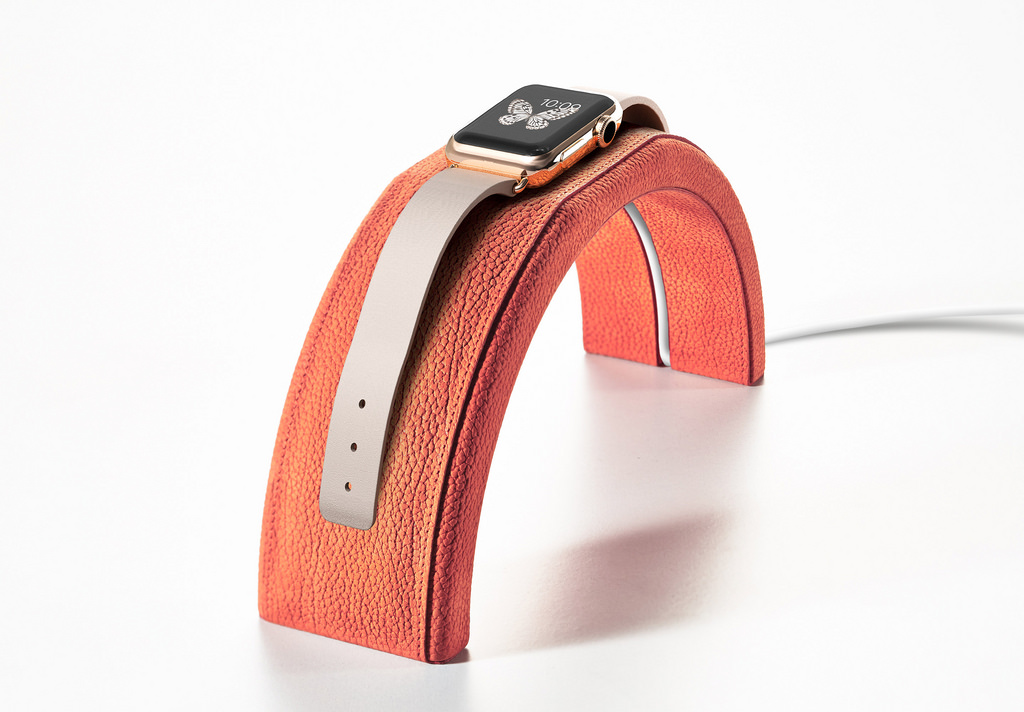
Your Apple Watch’s time is automatically set upon activation, but it can also give you the perks of an old watch, such as setting the time a little early if it’s what helps you get to work on time. To do this, go to Settings > Time > +0 min, then turn the Digital crown to advance the time up to 59 minutes. Changing the time will not affect your alarms or clocks for others countries.
One of the biggest hurdles in getting up in the morning is actually getting up in the morning and not hitting snooze on your alarm clock. You can disable snooze on Apple Watch to ensure you get up in the morning when your alarm goes off. To disable snooze, go to Settings > Alarms, then look for Snooze and turn off the toggle button beside it.
You can easily reply to messages using your Apple Watch via dictation or using emojis, but you can also create custom default messages for those moments a quick “call you later” is all the acknowledgement you can offer. To do this, launch the Apple Watch app on your iPhone then go to My Watch > Messages > Default Replies. From this screen, you can create custom replies that you can use on your Apple Watch.
The Apple Watch has a Taptic Engine that delivers vibrations to notify the wearer of events, but it can also be utilized to deliver directions while navigating. Taps will be delivered to your wrist to let you know if you need to take a right or left turn or if you’re nearing or at your destination.
If you need to make a left turn, the Apple Watch will deliver a series of two taps three times: tap-tap — tap-tap — tap-tap. If you need to turn right, you’ll receive 12 taps consecutively: tap-tap-tap-tap-tap-tap-tap-tap-tap-tap-tap-tap. And if you’re nearing your destination or if you have arrived at your destination, you will get a long vibration.
By utilizing Taptic Engine, the wearer no longer needs to look at his iPhone to see where to go or even strain his ears to listen for directions from Siri on his iPhone.
Many of us use various email clients for different purposes. One for work, one for personal and maybe another for miscellaneous things, such as signing up for email newsletters. On your Apple Watch, you can set which email services will appear on the screen, for instance setting it to only show work emails.
To do this, launch the Apple Watch app on your iPhone, go to My Watch > Mail > Include Mail and select which inboxes to display on your wrist.
We’ve all experienced the frustration of misplacing the phone. With Apple Watch, you can keep tabs on your iPhone with a ping.
From the watch face, swipe up to access Glances, and then go to the Settings glance. From there, you will see the Ping iPhone button; tap that to make your iPhone make a noise so you can find it.
You may want audible notifications on your Apple Watch, but alerts aren’t appropriate for all circumstances. For those moments you forgot to turn off the sound, activate the Cover to Mute feature for fast silencing of the Apple Watch. Cover the watch face with your palm, and sound is immediately muted.
To activate this feature, launch the Apple Watch app on your iPhone, go to My Watch > Sounds & Haptics, and then toggle the Cover to Mute to on.
If you’re looking for the right apps to make your Apple Watch more useful, check out SiliconANGLE’s Collen Kriel’s must-have apps for your Apple Watch.
via imore
… We’d like to tell you about our mission and how you can help us fulfill it. SiliconANGLE Media Inc.’s business model is based on the intrinsic value of the content, not advertising. Unlike many online publications, we don’t have a paywall or run banner advertising, because we want to keep our journalism open, without influence or the need to chase traffic.The journalism, reporting and commentary on SiliconANGLE — along with live, unscripted video from our Silicon Valley studio and globe-trotting video teams at theCUBE — take a lot of hard work, time and money. Keeping the quality high requires the support of sponsors who are aligned with our vision of ad-free journalism content.
If you like the reporting, video interviews and other ad-free content here, please take a moment to check out a sample of the video content supported by our sponsors, tweet your support, and keep coming back to SiliconANGLE.