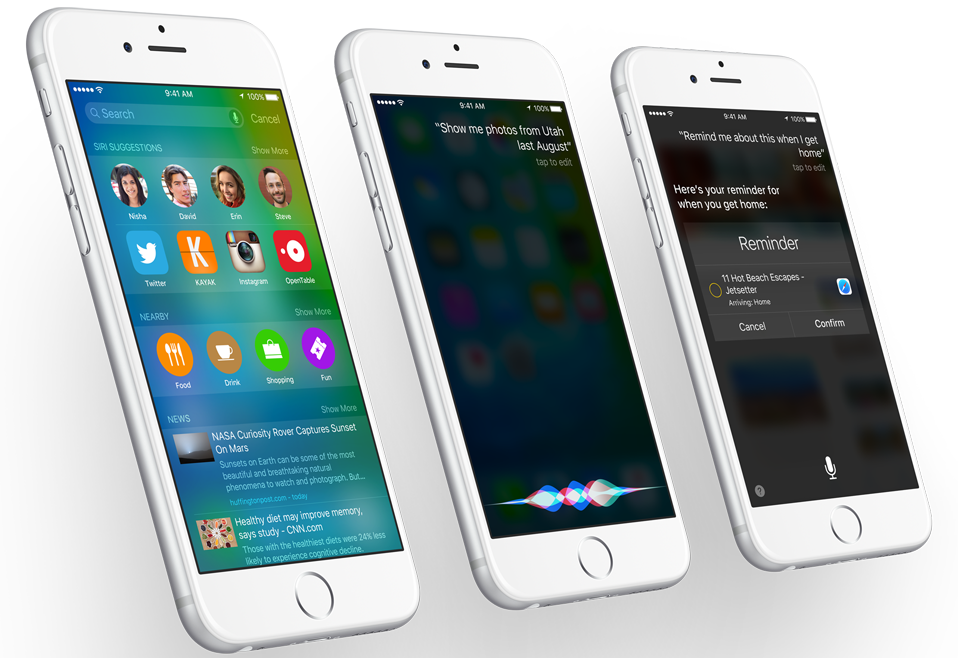







In iOS 9 for iPhones, Spotlights search is proactive and serves up prepopulated sections of information from your contacts, apps, nearby places, and more.
Swipe down to pull up a Spotlight search and you will see four app suggestions – based on your most frequently used apps – in addition to the search bar. Swipe right from the home screen to pull up Spotlight search and you are inundated with even more proactive suggestions, including suggested contacts, nearby places, local news stories.
The full-blown Spotlight search page displays proactive suggestions below the search bar in three main sections: Siri Suggestions, Nearby, and News.
The Siri Suggestions section displays recent contacts based on people you talk to most, talked to recently, or people you have appointments scheduled with.
The Nearby section provides search options in Maps for things like Food, Fun (things to do), Shopping, Travel, and more in your immediate vicinity – handy if you need an ATM or flat white in a hurry.
The News section surfaces four to eight news articles from sources you have selected in the News app based on your location.
While Apple’s aim with the new proactive Spotlight is to “make lots of little things easier,” you may not want to see all this extra info. The good news is that you have some options to customize Spotlight search in iOS 9: you can go cold turkey and revert to just the basic search bar, or you can tweak each of the sections to control what shows up in Spotlight search and what stays hidden.
If you want to see only the search bar when you swipe down or swipe right to access Spotlight, go to Settings > General > Spotlight Search and tap Siri Suggestions to toggle the feature off.
For more granular control over what shows up in Spotlight search, leave Siri Suggestions toggled on and scroll down the Search Results section just below.
To exclude an app from Spotlight search, simply toggle the switch off.
You can also control each individual section under Search Results.
Find Contacts and toggle it off to stop seeing recent contacts in Spotlight search and leave only recent apps displayed.
Toggle off Spotlight Suggestions to remove the News section from Spotlight search.
Stop seeing suggestions for nearby places by toggling off Maps.
You can use these granular settings to set up Spotlight search just the way you like it.
For more iOS 9 how-to’s, see our other iOS 9 tips and tricks.
Sources: Tom’s Guide; Apple
Support our mission to keep content open and free by engaging with theCUBE community. Join theCUBE’s Alumni Trust Network, where technology leaders connect, share intelligence and create opportunities.
Founded by tech visionaries John Furrier and Dave Vellante, SiliconANGLE Media has built a dynamic ecosystem of industry-leading digital media brands that reach 15+ million elite tech professionals. Our new proprietary theCUBE AI Video Cloud is breaking ground in audience interaction, leveraging theCUBEai.com neural network to help technology companies make data-driven decisions and stay at the forefront of industry conversations.





