







Who knew the ability to create handwritten notes and sketches inside a digital note-taking app was in such high demand?
Google recently updated the Android version of its Google Keep note-taking and list-making app to add the ability to create drawings in notes and annotate photos. Now, Evernote has followed suit with an update to its iOS app that allows users to create sketches inside notes on an iPhone or iPad.
Sketching in the updated Evernote app works with your finger, Adonit’s Jot Script 2 digital pen, and the new Apple Pencil on an iPad Pro. If you are immediately worried about creating fat lines with your finger that look like a toddler was set loose with a crayon, you’ll be happy to know you can adjust the line weight on a 3D Touch-enabled iPhone 6s or 6s Plus by simply applying less pressure when writing.
Like other Evernote features, sketches sync across all your devices linked to your account. This means you can create a sketch on your iPhone and edit it on your iPad or Android tablet later. Thanks to handwriting recognition, you can also search and find text inside handwritten notes and sketches.
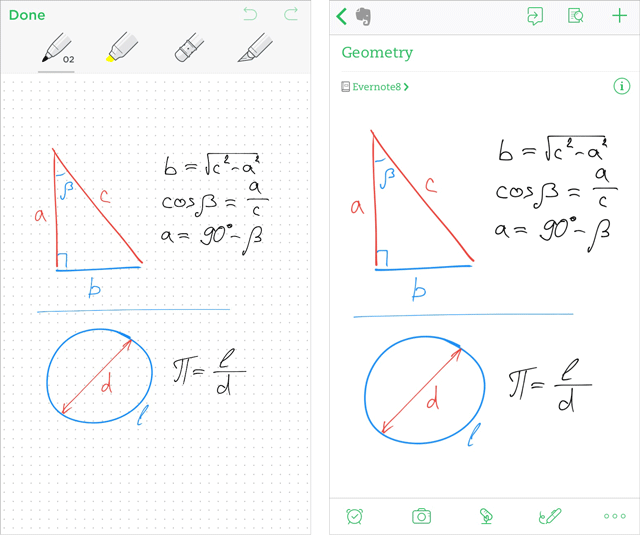
Once you have updated to the latest version of Evernote, a new pen icon will be visible when you are in a note. To create a sketch, tap the pen icon. The Note area will change into a canvas with a bar at the top with available drawing tools. You have a pen, highlighter, eraser, and selection tool at your disposal.
To sketch, tap the pen or highlighter twice, pick from five line thicknesses and ten color options and start sketching using your finger, Jot 2, or Apple Pencil.
The sketch will automatically resize to fit inside the note body and you can edit your sketch by tapping on it from within the note.
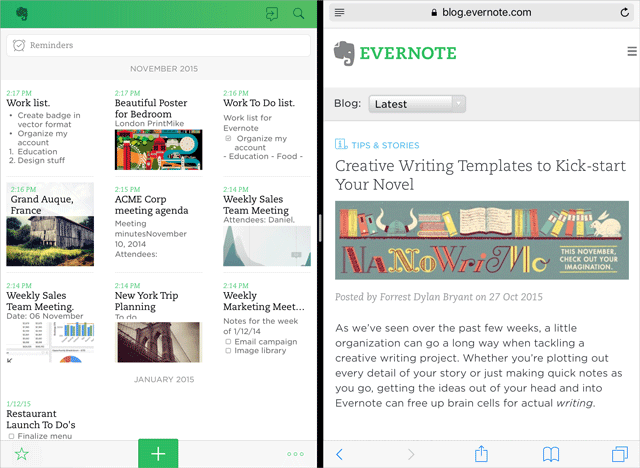
Sketching is not the only new feature Evernote rolled out to iOS. If you are using the latest version of Evernote on an iPad Pro, iPad Air 2, or iPad mini 4 running iOS 9, you can take advantage of the new Split Screen multitasking feature on iOS 9.
To view a second app side by side with Evernote, swipe your finger from the side and pick your second app. This is a handy feature for a note-taking app as we often want to copy and paste content from one app to another. For more on using Split Screen mode on an iPad, read: How to use the new iPad multitasking features in iOS 9: Slide Over, Split View, Picture in Picture.
The latest update of Evernote for iPhone and iPad is available for download now.
Support our mission to keep content open and free by engaging with theCUBE community. Join theCUBE’s Alumni Trust Network, where technology leaders connect, share intelligence and create opportunities.
Founded by tech visionaries John Furrier and Dave Vellante, SiliconANGLE Media has built a dynamic ecosystem of industry-leading digital media brands that reach 15+ million elite tech professionals. Our new proprietary theCUBE AI Video Cloud is breaking ground in audience interaction, leveraging theCUBEai.com neural network to help technology companies make data-driven decisions and stay at the forefront of industry conversations.





