






Apple is certainly not immune to the issues that crop up following the release of a new piece of tech or software. It has barely been two weeks since the company’s giant 12.9-inch iPad Pro went on sale and already users are reporting at least four issues with the device.
Apple has acknowledged at least one of the issues and is “investigating.” Others, such Wi-Fi connectivity issues and inaudible system sounds may be resolved using some tried and tested DIY tech troubleshooting.
If you are experiencing any of these issues with your iPad Pro, read on for a few fixes you can try.
If you are one of the hundreds of users whose iPad Pro won’t turn on after charging it, you’ll have to stay patient and wait for Apple to resolve the issue.
Users have reported that their iPad Pro switches off during charging and won’t switch back on and remains unresponsive no matter which buttons are pressed.
Apple is aware of the issue and looking into it. You can monitor this page on Apple’s support site to check when an official fix is available.
In the meantime, you can force restart your iPad Pro to temporarily resolve the issue, or perform a restore to see if that fixes the problem.
To force restart your iPad Pro, press and hold the Sleep/Wake and Home buttons simultaneously for 10 seconds, or until the Apple logo is displayed. Your iPad Pro will restart but it’s likely the issue will crop again next time you charge it.
Some users report that they’ve managed to fix the issue entirely by switching off the “Hey Siri” feature in Settings > General > Siri, although we cannot confirm this.
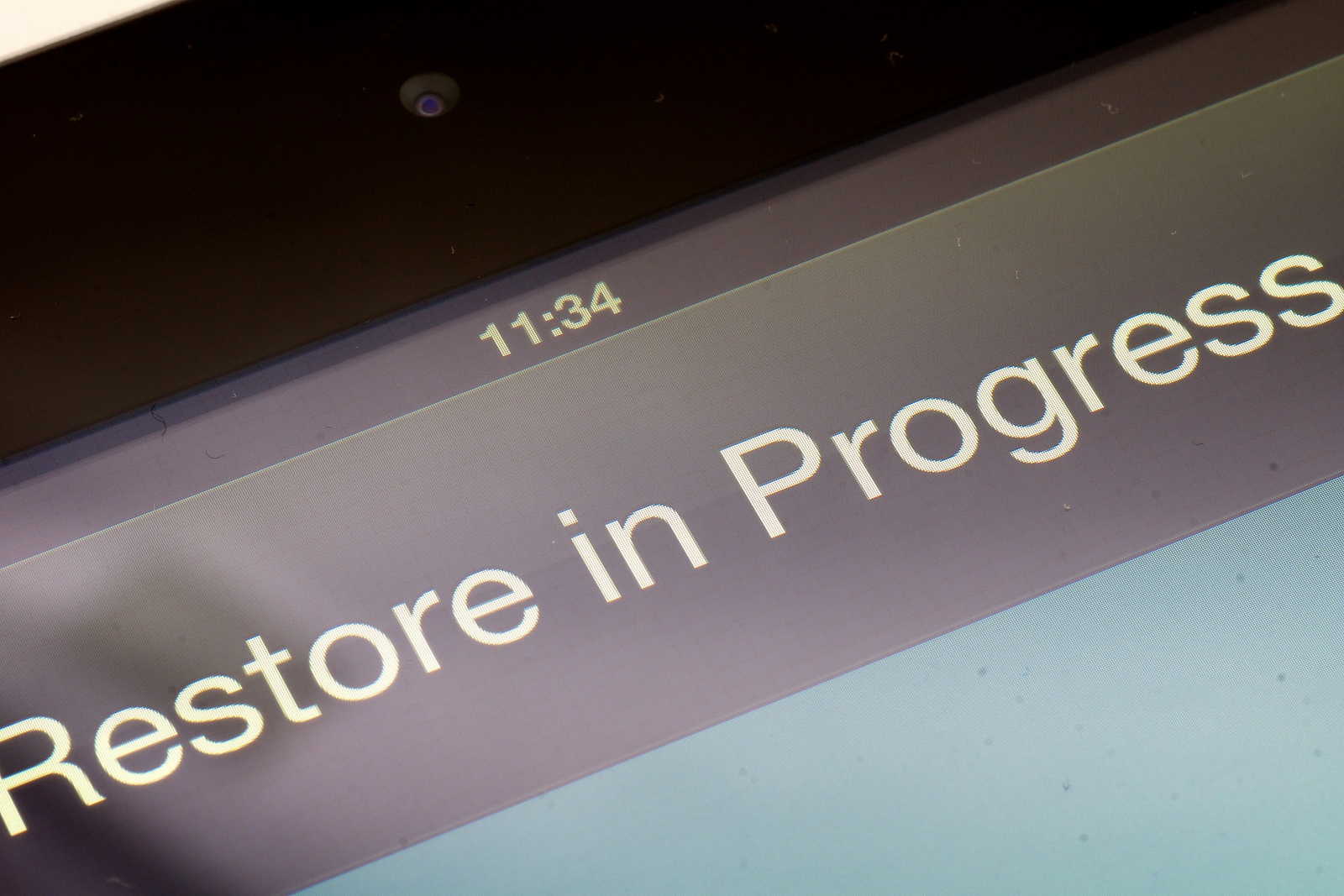
Another potential fix (with limited success reported), is to back up and restore your iPad Pro to factory settings using iTunes. Connect your iPad Pro to your PC or Mac, open iTunes, select your iPad Pro, click Summary and Restore, click Restore again to confirm.
Wi-Fi connection issues are common among mobile devices and it seems the iPad Pro has also fallen victim to this with some users experiencing issues when attempting to connect to a Wi-Fi network with their iPad Pro.
If your iPad Pro is not connecting to Wi-Fi, try one of the below fixes:
Buried among the users reporting a dead iPad Pro after charging, are a few users who report that their iPad Pro’s screen freezes up for a few seconds while they’re busy using it.
Just like for the dead iPad Pro issue, you can force restart your iPad Pro to temporarily fix the issue or try and resolve it entirely by performing a factory reset, following the same steps above.
It’s our guess that whatever is causing the iPad Pro to not start up after a charge is possibly also responsible for this problem. If a factory reset doesn’t resolve the issue, you may have to wait for Apple to find a solution – possibly in the form of a firmware update – or contact Apple support.
A slew of iPad Pro users have reported abnormally low systems sounds for the lock sound, keyboard clicks, mail alerts, message notifications and calendar events, and other sounds despite the volume being normal for things like movies and music.
To make your iPad Pro’s system sounds more audible, try one the below:
Support our mission to keep content open and free by engaging with theCUBE community. Join theCUBE’s Alumni Trust Network, where technology leaders connect, share intelligence and create opportunities.
Founded by tech visionaries John Furrier and Dave Vellante, SiliconANGLE Media has built a dynamic ecosystem of industry-leading digital media brands that reach 15+ million elite tech professionals. Our new proprietary theCUBE AI Video Cloud is breaking ground in audience interaction, leveraging theCUBEai.com neural network to help technology companies make data-driven decisions and stay at the forefront of industry conversations.





