







Windows 10 has a built-in feature called Fast Startup mode that allows your computer to startup quickly after you shut it down.
This article covers what the Fast Startup mode is and how to enable the built-in feature.
In Windows 10, the Fast Startup feature (also known as hiberboot, hybrid boot or hybrid shutdown) is a combination of the shutdown and hibernation features. When the mode is enabled, your computer will start faster after shutting it down. Windows 10 achieves this by saving drivers and system related files to a hibernation file when you shutdown your computer.
When your switch your computer on, Windows 10 resumes from hibernate rather than starting up from scratch.
As Windows 10 resumes from hibernate, you need to ensure the feature is enabled or else it will not be possible to enable Fast Startup.
If, for some reason, you do not have the hibernate feature enabled, follow the below steps:
Right click the Start button > click Command Prompt (Admin) > type powercfg –h > press Enter.
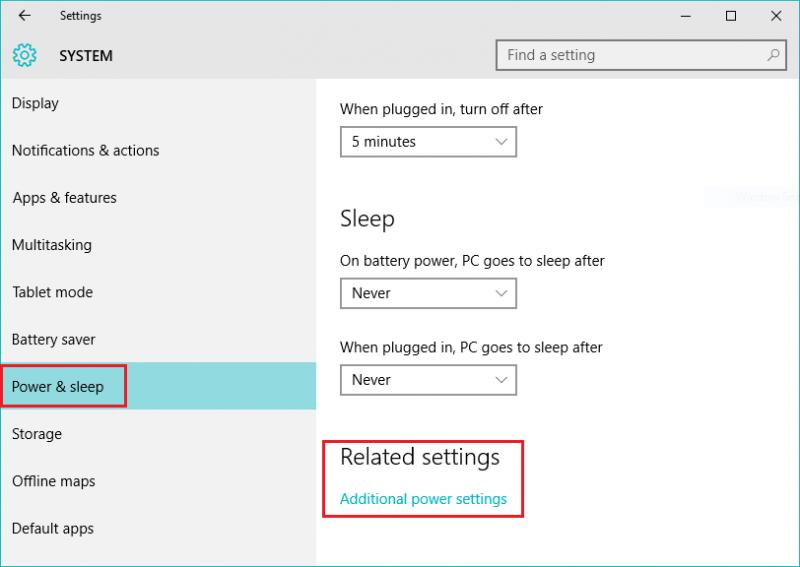
Step 1: Click the Start button > select Settings. In the Settings menu > click System > Power & sleep > Additional power settings.
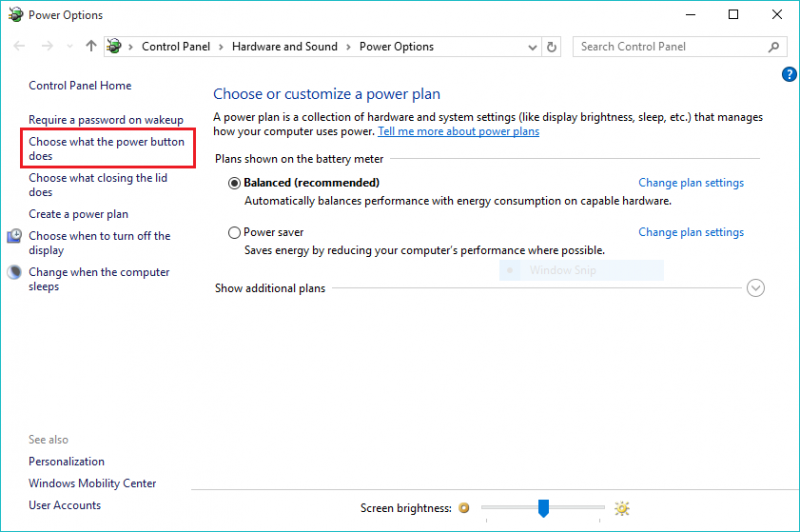
Step 2: In the Power Options window > click Choose what the power buttons do on the left hand side of the screen.
Step 3: Scroll to the bottom of the window > under Shutdown settings there is an option Turn on fast startup (recommended). By default, this feature should be enabled in Windows 10, if it is not then tick the box. Alternatively, if you want to switch off this feature then uncheck the box.

Tip: If Turn on fast startup (recommended) is greyed out, then click on Change settings that are currently unavailable. A User Account Control (UAC) pop-up window, may prompt you to confirm your choice > click Yes. The Fast Startup option should now be available for selection.

Step 4: Click Save changes and exit out of the Power Options window.
Step 5: Shutdown your computer and switch it back on again to see what effect the enabled feature has on your startup time.
Support our mission to keep content open and free by engaging with theCUBE community. Join theCUBE’s Alumni Trust Network, where technology leaders connect, share intelligence and create opportunities.
Founded by tech visionaries John Furrier and Dave Vellante, SiliconANGLE Media has built a dynamic ecosystem of industry-leading digital media brands that reach 15+ million elite tech professionals. Our new proprietary theCUBE AI Video Cloud is breaking ground in audience interaction, leveraging theCUBEai.com neural network to help technology companies make data-driven decisions and stay at the forefront of industry conversations.





