






Cortana, Windows 10’s built-in personal assistant, allows you to complete various tasks using only your voice, including creating calendar appointments or setting reminders. The digital assistant works across all devices you have Windows 10 is installed on, including phones, PC’s and tablets.
Cortana is also integrated with a variety of third-party Windows 10 apps, including Hulu, Uber, Netflix, Twitter, Dictionary, USA Today, Fitbit, Expedia, INSTEON for Hub and Skype.
We look at how to determine which of your third-party apps are integrated with Cortana as well as the various commands that you can use to control some of the most popular apps.
Click the Cortana search bar or icon in the taskbar > in the Cortana panel, click the help icon (question mark) in the left-hand navigation panel.
Scroll down the help page, below the solid line, to see a list of your third-party apps that are integrated with Cortana.
Together with the list of apps are also recommended Cortana commands that you should use for each of the apps.
Below are just 10 of the third-party apps that are integrated with Cortana, allowing you to use your voice to complete various tasks, from watching your favorite show, to checking on the weather.
Tip: Remember, before giving the app-specific command you need to make sure that you wake Cortana up, by saying “Hey Cortana”
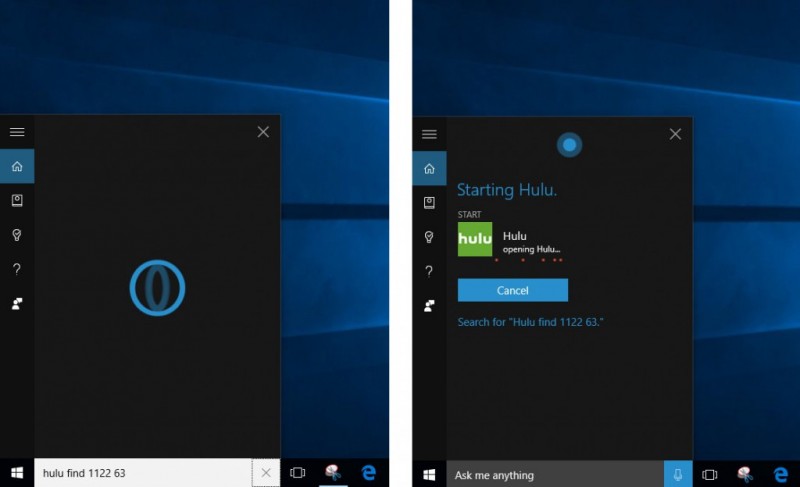
On February 15, Hulu announced the release of its Hulu app on Windows 10 PCs, mobile phones, and tablets, which features integration with Cortana.
To watch your favorite show or movie, simply say “Hulu play [insert show or movie].” The Hulu app will launch and your show or movie will begin. If you are in the middle of a series then the Hulu app will play the specific episode where you left off.
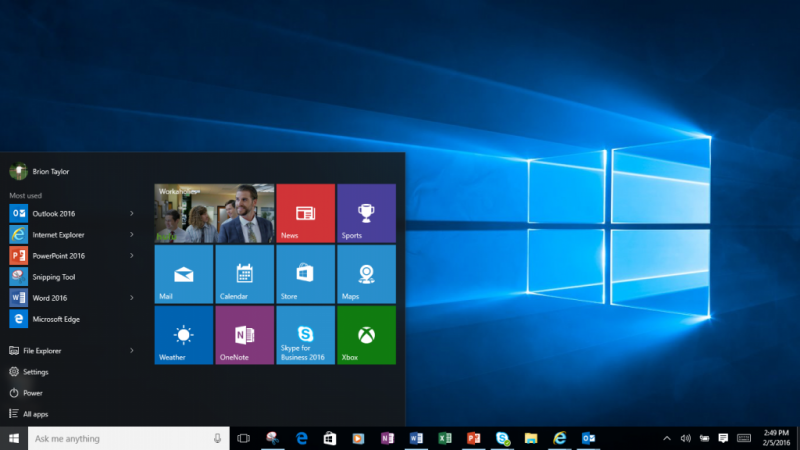
Tip: You can also pin the Hulu app to your Windows 10 Start menu. The Hulu Live Tile will cycle through the shows featured on the Hulu homepage. Alternatively, you can also pin a particular series to the Start menu for quick access.
Download Hulu from the Microsoft Store.
Get Cortana to send you an Uber directly to your location, simply say “Uber, get me an Uber Black.” After opening the Uber app, Cortana will locate you via GPS.
Download Uber from the Microsoft Store.
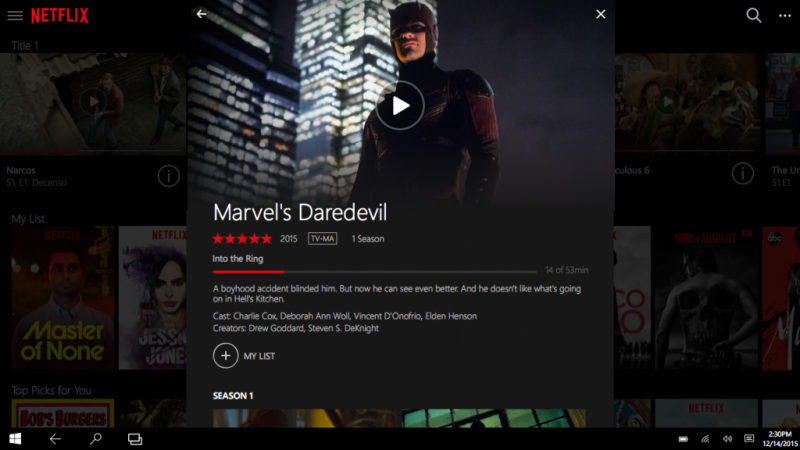
Control your Netflix experience and navigate across the content with the help of Cortana. Commands include “Cortana, launch Netflix” or “Netflix, find [show or movie].”
Download Netflix from the Microsoft Store.
Cortana allows you to easily send a tweet without the need to type a single character. Say, “Twitter, new tweet.” The Twitter app will open and then you can dictate your new tweet.
Download Twitter from the Microsoft Store.
Unsure of the meaning of a word, simply ask Cortana, “Dictionary, what is [insert specific word]?” and Cortana will go ahead and give you the definition.
Download Dictionary from the Microsoft Store.
Never miss out on the latest news, weather or sport. To see the latest sports news, say “USA Today, show me sports” or to check the weather forecast, “USA Today, what is the weather?”
Download USA Today from the Microsoft Store.
Cortana assists you in logging both your food intake and exercise into the Fitbit app.
To log food say, “Fitbit, I ate a salad for lunch.” Cortana will open Fitbit’s Log Food page and will show you various salad options, and portion sizes. Tap the checkmark to save your meal into the food log.
To log exercise say, “Fitbit, I cycled 20 miles.” Cortana will open Fitbit’s Log Exercise page and you can then type in the duration of your cycle.
Download Fitbit from the Microsoft Store.
Find a hotel in your area, by saying “Expedia, I need a hotel room,” and Cortana will show you a list of hotels, together with availability, pricing and ratings. You can then navigate through the list to see further details or to make a reservation.
Download Expedia from the Microsoft Store.
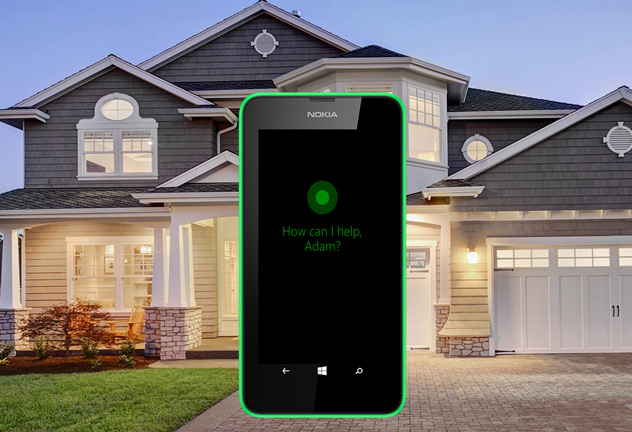
You can use Cortana to control your smart home, by giving simple instructions like “Insteon, lock the front door,” “Insteon, turn on all the lights,” or “Insteon, adjust living room temperature down.”
Download INSTEON for Hub from the Microsoft Store.
If you are busy driving, cooking or simply do not have a spare hand to make a call you can control your Skype calls using Cortana. Simply say “Skype, call Claire,” and Cortana will put you through. Alternatively for a video call, say “Skype, get Claire on the screen.”
Download Skype from the Microsoft Store.
Support our mission to keep content open and free by engaging with theCUBE community. Join theCUBE’s Alumni Trust Network, where technology leaders connect, share intelligence and create opportunities.
Founded by tech visionaries John Furrier and Dave Vellante, SiliconANGLE Media has built a dynamic ecosystem of industry-leading digital media brands that reach 15+ million elite tech professionals. Our new proprietary theCUBE AI Video Cloud is breaking ground in audience interaction, leveraging theCUBEai.com neural network to help technology companies make data-driven decisions and stay at the forefront of industry conversations.





