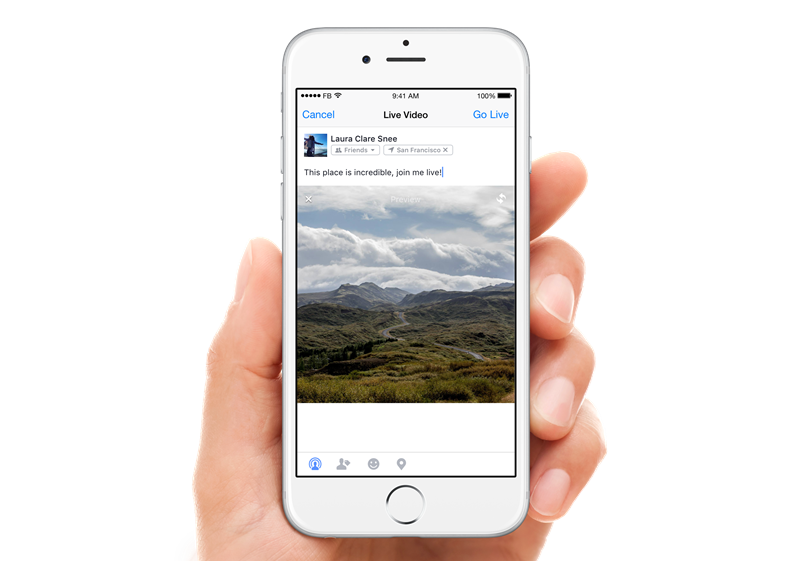







Facebook Live has proven incredibly popular in its short lifespan, since launching for iPhone users at the end of January and Android users at the start of March.
The feature allows users to instantly share a special moment in their life so that friends and family can enjoy the moment live with the individual. Facebook Live has expanded and covers a range of different people covering a wide range of topics. From people sharing their child’s special moments to athletes livestreaming their training regimen, to journalists hosting important global conversations. More and more users are finding unique events to livestream about.
If you are completely new to the world of Facebook Live, read our articles on how you can livestream your life on both iPhone and Android. We also look at top tips to ensure you become a Facebook Live pro, and how you can broadcast live in specific Facebook Groups and Events.
Like any new feature, though, not everyone will be a fan and the same can be said for Facebook Live. There have been numerous complaints of people getting incredibly annoyed by the constant stream of Facebook Live notifications that are filling their inboxes.
If you are one of these people then here is how you can turn off Facebook Live notifications on both a case-by-case basis as well as across the board.
If there are certain people or Pages that are irritating you with their constant Facebook Live videos, it is possible to turn off individual Facebook Live notifications.
When you receive a Facebook Live notification > click the upside-down arrow in the top right-hand corner > in the pop-up select ‘turn off live video notifications’.
You are also able to turn off individual notifications by clicking the same Live Subscribe button that you clicked initially to sign up for the individual or Pages Live video streams.
It is now possible to turn off Facebook Live notifications across the board. The new change is not available for all Facebook users but is slowly rolling out across Facebook’s desktop and mobile apps. The change was first spotted by Teresa Hammerl (via Business Insider) , who tweeted details about the new option at the end of last week.
looks like you can now turn off all facebook live notifications. go to settings – notifications – live videos. pic.twitter.com/cgqLguXFTt
— Teresa Hammerl (@colazioneAroma) April 21, 2016
On the web, go to your Facebook account, click Settings (found under the drop-down arrow at the end of the top blue banner) > Notifications > under Notification Settings, click On Facebook to expand it. Under the section What You Get Notified About, scroll down to Facebook Live > select to have them On, Suggestions Off, or All Off.
Support our mission to keep content open and free by engaging with theCUBE community. Join theCUBE’s Alumni Trust Network, where technology leaders connect, share intelligence and create opportunities.
Founded by tech visionaries John Furrier and Dave Vellante, SiliconANGLE Media has built a dynamic ecosystem of industry-leading digital media brands that reach 15+ million elite tech professionals. Our new proprietary theCUBE AI Video Cloud is breaking ground in audience interaction, leveraging theCUBEai.com neural network to help technology companies make data-driven decisions and stay at the forefront of industry conversations.





