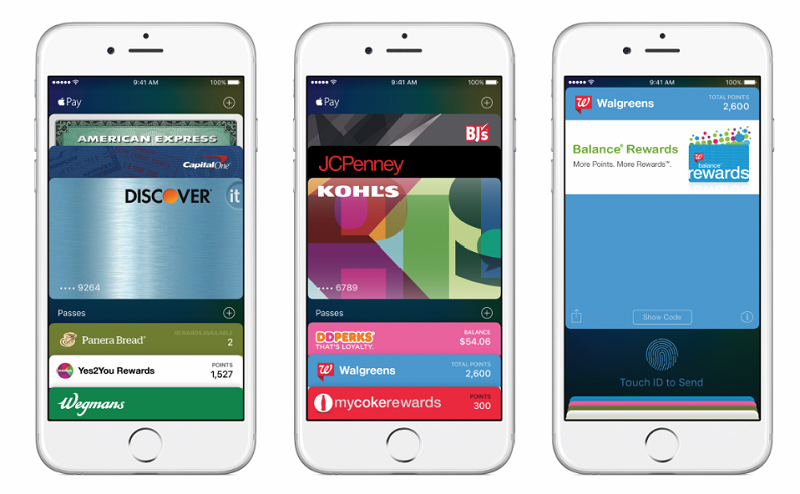







Since launching in the U.S. in October 2014, Apple Pay has gone on to launch in the U.K., China, Australia, Canada and Singapore. It has now been 18 months since its U.S. launch and Apple Pay users and stores are growing rapidly across the six countries. The payment service is now available in more than 10 million contactless locations, which includes 2.5 million locations in the U.S. who are currently accepting Apple Pay.
If you are one of the 1 million new users who is signing up to use Apple Pay on their iPhone, iPad or Apple Watch, make sure you take note of these three tips to get the most out of the payment service.
Apple Pay is compatible with the iPhone 6, 6 Plus, 6s, 6s Plus and SE. Apple Watch users can use Apple Pay to make in-store payments. While iPad Pro, iPad Air 2, iPad mini 4 and iPad mini 3 can use Apple Pay for in-app purchases.
Apple’s list of stores that accept Apple Pay gets updated continuously and while you can look through this list to see if a certain store supports Apple Pay there is an easier way.
Open Apple Maps on your iPhone, iPad or Mac > search for a specific store. Once the store is located, tap the box above the pin to view the information page. The amount of information available on this page depends on the amount of data available, like Apple’s own database, Yelp user submissions, etc. If Apple Pay is supported at the store, you will see an Apple Pay logo alongside the store’s category and price range.
There is a wide range of apps that accept Apple Pay, including Kickstarter, Dunkin Donuts, and Airbnb, making it quicker to complete in-app purchases on your iPhone or iPad.
To ensure you speed up the checkout process make sure you have your default billing information set up. Open Settings > Wallet & Apple Pay > select your default card (if you have more than one loaded), add your shipping address, email, and phone number.
Once setup, you can easily pay with Apple Pay in store, by simply double clicking your iPhone’s home button. When the home button is double clicked, Apple Pay will launch your default card. Place the finger that you set up in Touch ID and Passcode on your iPhone’s screen and be near to the chip reader to complete the payment process.
To set up Apple Pay from your iPhone’s lock screen, go to Settings > Wallet & Apple Pay > turn on Double-Click Home Button.
Support our mission to keep content open and free by engaging with theCUBE community. Join theCUBE’s Alumni Trust Network, where technology leaders connect, share intelligence and create opportunities.
Founded by tech visionaries John Furrier and Dave Vellante, SiliconANGLE Media has built a dynamic ecosystem of industry-leading digital media brands that reach 15+ million elite tech professionals. Our new proprietary theCUBE AI Video Cloud is breaking ground in audience interaction, leveraging theCUBEai.com neural network to help technology companies make data-driven decisions and stay at the forefront of industry conversations.





