







Google’s Phone app has been updated with spam protection that will protect Nexus and Android One users by warning them about potential calls from spammers.
The new warning feature is an extension of the existing Caller ID functionality. If you receive a call from a suspected spam caller, a red large banner will appear on your device’s screen and warn you that the caller could be a potential spam caller.
Once the call is ended you will have the opportunity to block the number and report it. Alternatively, if it is a legitimate number you can mark it as such.
We look at how you can report spam numbers, mark numbers as ‘safe’ and how to disable the default spam protection functionality if you don’t want it.
If you have Caller ID enabled on your Nexus or Android One device, the spam protection feature will be available once the app updates to the latest version of the Google Phone app (version 4.0).
Note: You will require Android 6.0 and above. To check what Android version you are running, go to Settings > About phone > check the number under Android version.
If you cannot wait until the upgrade is available for your Nexus or Android One device, you can download the APK Mirror of version 4.0 of the Phone app.
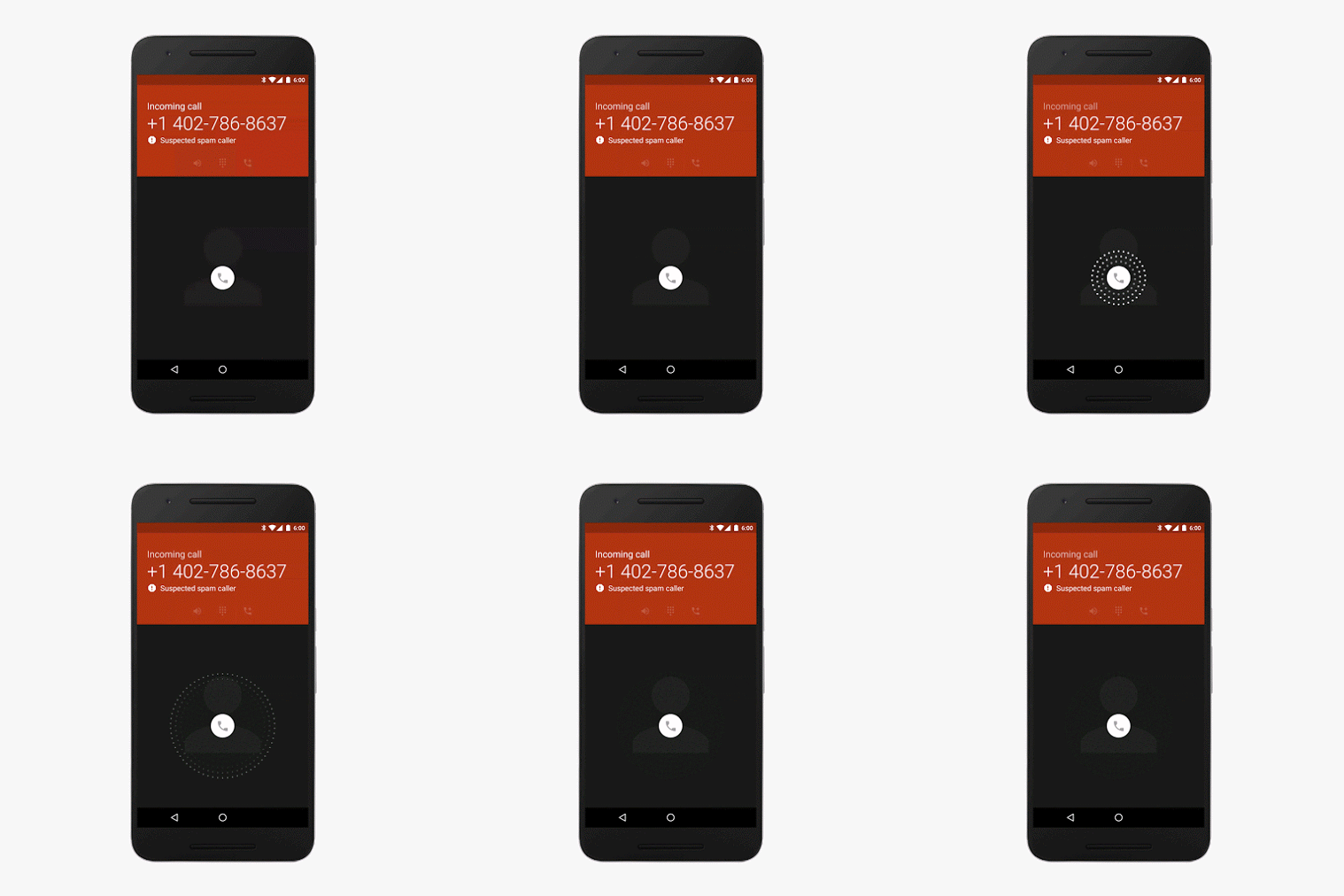
If spam protection detects a call as spam you can block and report the number so that you don’t get calls from that number in the future.
Open the Phone app > Recent calls > select the spam call > tap Block/report spam. You will be asked whether you want to block the number. Tap Report call as spam > Block.
If you notice that a call marked as spam is actually from someone you know and trust you can report the mistake and ensure that the next time the person phones they are not marked as spam.
Open the Phone app > Recent calls > select the call that was incorrectly marked as spam > tap Not spam.
By default, both Caller ID and spam protection is enabled, but if for some reason you want to disable it here’s how to do it.
Open the Phone app > tap the three-dot More icon > Caller ID & spam protection > use the toggle to turn the feature Off or back On if you later change your mind.
Source: Google Support
Support our mission to keep content open and free by engaging with theCUBE community. Join theCUBE’s Alumni Trust Network, where technology leaders connect, share intelligence and create opportunities.
Founded by tech visionaries John Furrier and Dave Vellante, SiliconANGLE Media has built a dynamic ecosystem of industry-leading digital media brands that reach 15+ million elite tech professionals. Our new proprietary theCUBE AI Video Cloud is breaking ground in audience interaction, leveraging theCUBEai.com neural network to help technology companies make data-driven decisions and stay at the forefront of industry conversations.





