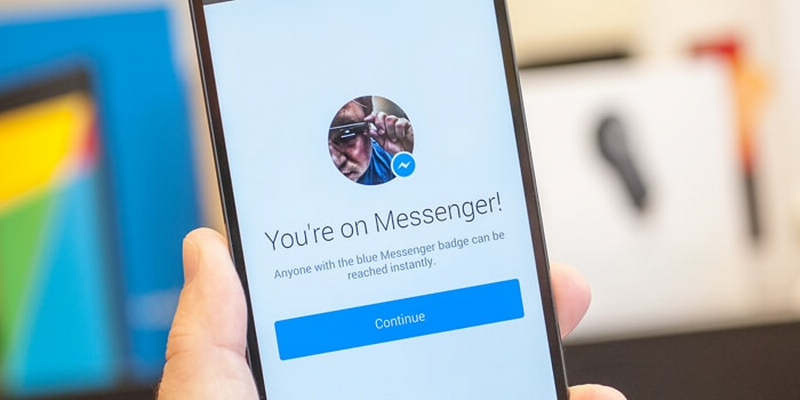







Facebook Inc. started testing end-to-end encryption with a select group of Facebook Messenger users back in July. The new feature, appropriately named Secret Conversations, allows users to decide when they want their messages, sent on Facebook Messenger, to have end-to-end encryption.
Any messages sent in Secret Conversations will be protected from Facebook, the FBI or a local snoop. The message remains secure between you, the recipient and the two devices used.
After testing the feature for the last few months, Facebook has rolled it out to all 1 billion users.
Facebook-owned WhatsApp rolled out end-to-end encryption to all users in April. However, while its encryption is by default applied to all messages, Facebook Messenger users will have to decide which messages have the encryption. It is similar to the end-to-end encryption applied to Google Allo, which users will only benefit from if they send messages in Incognito Mode.
We look at how you can benefit from end-to-end encryption in Facebook Messenger and send your friends Secret Conversations.
Make sure you have the latest version of Facebook Messenger installed on your device for iOS or Android.
When you open Facebook Messenger to the Home screen, you will be presented with more details about the new Secret Conversations feature.
Tap the Compose icon > tap the Secret button in the top right > select the recipient of your secret message.
Note: Unlike a normal message in Facebook Messenger, with Secret Conversations you won’t be able to use features like location, payments or third-party apps. You will be able to send photos and stickers.
Messages sent in Facebook Messenger allow you to jump between devices and easily pick up the conversation on your phone, tablet or PC. However, Secret Conversations are between two people and two devices only. Therefore before you can type your message to your Secret Conversation recipient, a pop-up will request whether you want to make the device you are using the default device for your Secret Conversation > tap Make Default.
Type and send your message.
If you have an existing conversation that you want to continue with end-to-end encryption, tap on the chat > tap the “i” icon > in the Settings menu select Secret Conversation.
For additional security, you can also allocate a timer to your Secret Conversation, which means your message will be completely deleted after the allocated time has run.
In your Secret Conversation > tap the clock icon > select a time range between 5 seconds and one day.
Alternatively, for conversations with no timer allocation you can manually delete them. Tap the person’s icon > Secret Conversations > Delete Secret Conversations > tap Delete All.
Sources: TechCrunch; Cnet
Support our mission to keep content open and free by engaging with theCUBE community. Join theCUBE’s Alumni Trust Network, where technology leaders connect, share intelligence and create opportunities.
Founded by tech visionaries John Furrier and Dave Vellante, SiliconANGLE Media has built a dynamic ecosystem of industry-leading digital media brands that reach 15+ million elite tech professionals. Our new proprietary theCUBE AI Video Cloud is breaking ground in audience interaction, leveraging theCUBEai.com neural network to help technology companies make data-driven decisions and stay at the forefront of industry conversations.





