 APPS
APPS
APPS
APPS






APPS

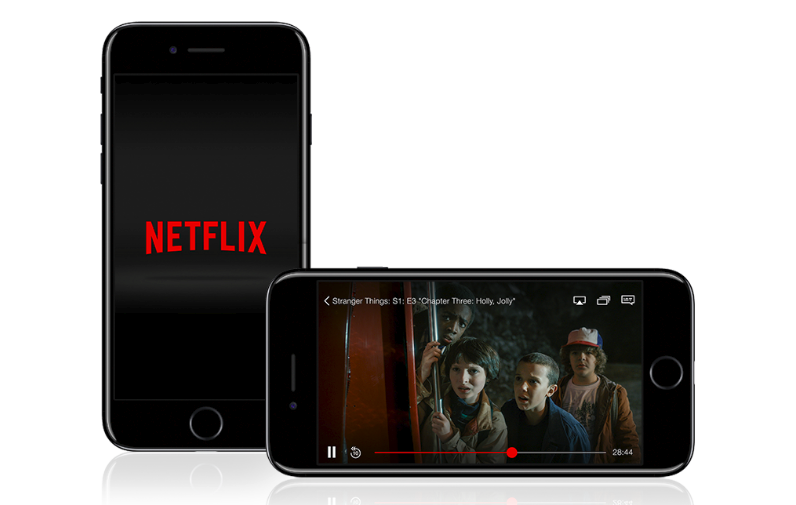
Despite Netflix Inc. stating two years ago that the company would never offer offline playback, it has reversed course and will now allow subscribers to download select movies and television shows.
Movies and TV shows that are available to download from Netflix include various Netflix originals such as “Stranger Things,” “Narcos” and “The Crown,” as well as various other TV shows and movies, such as “Parks and Recreation,” “The Office,” “30 Rock,” “Boyhood,” “Dazed and Confused” and “Minions.”
Amazon.com Inc. launched the ability to download select TV shows and movies for its Prime members in September last year. Downloaded titles from Amazon Prime are only available for a limited time period, which varies by title. Before the time period elapses, you must reconnect to the Internet and open the app to reset the timer.
In addition to staying competitive with Amazon, Netflix had to adapt its service as it continues to expand into more global markets, especially developing markets where broadband speeds and Wi-Fi access can vary greatly.
Here’s a look at how to get started with downloading various TV shows and movies from Netflix:
You will need the latest version of the iOS or Android Netflix app installed on your device. The iOS app requires iOS 8.0 or later, while the Android app requires version 4.4.2 or later.
Tip: As downloads can use a lot of data, Netflix suggests downloading movies and TV series while on a reliable Wi-Fi connection.
When you find a title you are interested in, select the title > tap the download icon on the description page.
Tip: For TV shows, the download icon will appear next to each individual episode.
Downloaded TV shows and movies will be stored in the same location on your device as the Netflix app (for example, your device’s internal storage or the SD card).
You can select either standard quality, which is slightly lower video quality, but is quicker to download and takes up less storage space, or high quality.
In the Netflix app, tap the Menu icon > App Settings > tap Video Quality under the Downloads heading > choose between Standard or High video quality.
Note: By default, video quality is set at standard.
All your downloaded movies and TV shows will appear in the “My Downloads” section of the Netflix app, which will also show you the amount of storage being used by each title. TV shows are grouped together and display the number of episodes available.
To watch a movie: tap the Menu icon > My Downloads > tap the Play icon next to the movie you want to watch.
To watch a TV show: tap the Menu icon > My Downloads > first select the title > tap the Play icon next to the episode you want to watch.
On your iOS or Android device: tap the Menu icon > My Downloads > tap Edit in the top-right corner > tap the “x” icon.
Delete all downloaded movies and TV shows: tap the Menu icon > App Settings > tap Clear All Downloads > tap Delete on the confirmation page.
Source: Netflix Help
Support our mission to keep content open and free by engaging with theCUBE community. Join theCUBE’s Alumni Trust Network, where technology leaders connect, share intelligence and create opportunities.
Founded by tech visionaries John Furrier and Dave Vellante, SiliconANGLE Media has built a dynamic ecosystem of industry-leading digital media brands that reach 15+ million elite tech professionals. Our new proprietary theCUBE AI Video Cloud is breaking ground in audience interaction, leveraging theCUBEai.com neural network to help technology companies make data-driven decisions and stay at the forefront of industry conversations.





