 APPS
APPS
APPS
APPS






APPS

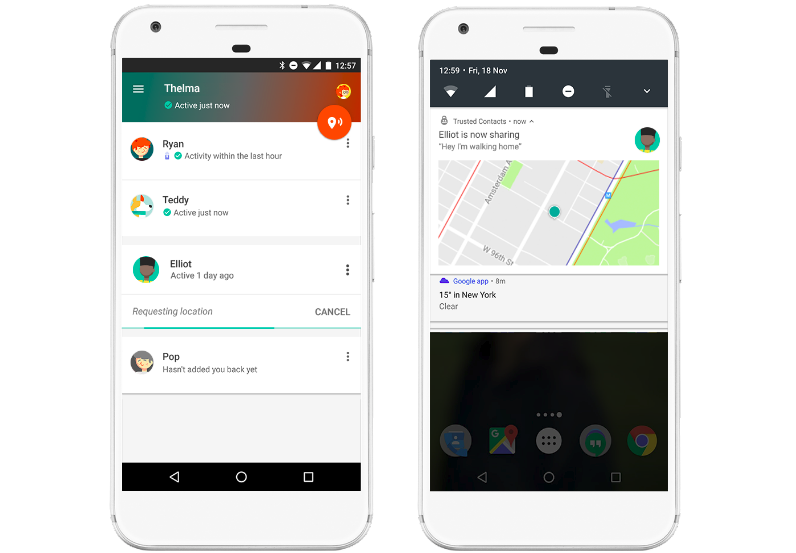
Google Inc. has launched a new Android app called Trusted Contacts, a personal safety app that lets you share your location with friends and family, even if you are offline, your battery is dead or you can’t get to your phone.
Trusted Contacts is currently only available for Android (KitKat and above) users, but Google is working on an iOS version. Here’s a look at how to add trusted status to contacts, how to share your location with them and how they can request your location:
Download the Trusted Contacts app from the Play Store > open the app > sign in with your Google account > complete the signup process and select the family and friends you want to add as trusted contacts.
Note: Your trusted contacts don’t have to have a Google account to see your shared locations, but will need a Google account if they want to request your location.
You can add or remove contacts from the Trusted Contacts app at any stage.
You can share your live location using the Trusted Contacts app on your Android device. Your location will update automatically (up to a maximum of 24 hours) and will be visible to your contact until you choose to stop sharing it.
Open the Trusted Contacts app > tap Share Location in the top right > tap Choose Recipients > select the relevant contacts > tap Share Location.
Tip: You can pin a trusted contact to your notification area for quick access. Open the Trusted Contacts app > select the relevant contact > tap the overflow menu > tap Pin Contact.
Once you have added a friend or family member as a trusted contact, they can find your location using an Android or iOS device, as well as a computer.
Note: Trusted contacts can also see a constant update of your status, which includes Activity just now (the app has recorded movement – walking/touchscreen taps – in the last 30 minutes); Activity in the last hour; or a status of Low battery, battery dead or offline.
When someone requests your location your phone will ring like you are receiving a call. The full-screen notification will let you know who wants your location.
You can respond in three ways: You can share your location; you can decline the request and the person will see that you declined, or if you don’t answer after five minutes your location will be shared automatically.
If the person requesting your location is using the Trusted Contacts Android app they will receive the relevant location or notification through the app and via email. For people using an iOS device or a computer, they will receive notifications via email.
Support our mission to keep content open and free by engaging with theCUBE community. Join theCUBE’s Alumni Trust Network, where technology leaders connect, share intelligence and create opportunities.
Founded by tech visionaries John Furrier and Dave Vellante, SiliconANGLE Media has built a dynamic ecosystem of industry-leading digital media brands that reach 15+ million elite tech professionals. Our new proprietary theCUBE AI Video Cloud is breaking ground in audience interaction, leveraging theCUBEai.com neural network to help technology companies make data-driven decisions and stay at the forefront of industry conversations.





