 APPS
APPS
APPS
APPS






APPS

To coincide with Facebook Inc.-owned WhatsApp’s eighth birthday this week, the messaging service has updated its WhatsApp Status feature.
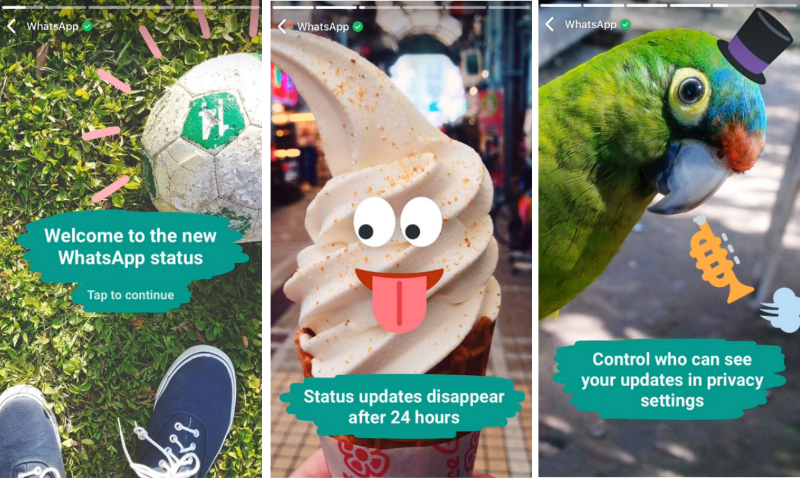
The Snapchat-like feature will now allow users to share photos, videos and GIFs, decorated with text, emojis and drawings, with their contacts. These status updates will disappear after 24 hours. While the feature is very similar to Snapchat Stories, it does have the benefit of being end-to-end encrypted, like all messages on WhatsApp.
Facebook-owned Instagram launched its own Snapchat-like feature called Instagram Stories in August last year. Since launching, Instagram Stories has proved very popular and with more than 150 million daily users is stealing users away from Snapchat.
The new WhatsApp status update feature replaces the “text only” status functionality, which the app has had since the start. The new feature is rolling out globally, starting with Europe, to iOS, Android and Windows users.
“Status” gets a new tab of its own in WhatsApp and can be found between “Chats” and “Calls.” The photos, videos and GIFs that you share in WhatsApp will disappear after 24 hours.
On an iPhone, Android or Windows device: In WhatsApp, go to the Status screen > tap the status icon > either take a new photo or video or upload an existing one from your gallery > personalize your photo or video with text, emojis and freehanded drawings > tap the blue send button to update your status.
Add emojis, text and drawings to your status
To add an emoji, tap the Emoji button in the top right > select an emoji. You can rotate, resize and move the emoji to any place on your photo or video.
To add text, select the “T” button in the top right > type the text you want to add. Change colors by sliding your finger up and down on the color selector on the right. Change the font by using the font selector on the left, lift your finger when you decide on a font. You can also resize and rotate the text on your photo or video.
To add drawings, tap the Pencil button in the top right. You can change the color for each line of your drawing by using the color selector on the right.
By default, your status updates on WhatsApp are shared with all your contacts, but you can change your privacy settings to only share your status update with selected contacts.
On your iPhone, go to the Status screen > tap Privacy in the top left > select who can see your status.
On your Android device, go to the Status screen > tap the Menu button > Status privacy > select who can see your status.
On your Windows device: go to the Status screen > tap the More icon > Privacy settings > select who can see your status.
This change will only affect your status updates going forward.
If you decide that you want to delete your status update before it disappears after 24 hours you can do so manually and it will be removed from your contact’s phone.
Go to the Status screen > next to “My Status” tap the three dots > swipe left on the status update > tap Delete.
To view a person’s WhatsApp status update, go to the Status tab > select a contact’s status. You can reply to a contact’s status update, by tapping the Reply button at the bottom of their status update screen. Any replies that you send or receive will only be visible to your contact and you. These replies will appear in the Chat with your contact and will indicate which status update is being referred to.
Note: If you have disabled Read Receipts you won’t be able to see which contacts have viewed your status update.
You also have the option to mute a particular contact’s status update so it won’t appear at the top of the status list. Go to the Status screen > swipe left on the status update that you want to mute (iPhone) or tap and hold the status update (Android) or long press a contact’s name (Windows) > tap Mute.
You can find all “Muted statuses” on the Status screen. Swipe left (iPhone), tap and hold (Android) or long press (Windows) on the status to unmute it.
Source: WhatsApp
Support our mission to keep content open and free by engaging with theCUBE community. Join theCUBE’s Alumni Trust Network, where technology leaders connect, share intelligence and create opportunities.
Founded by tech visionaries John Furrier and Dave Vellante, SiliconANGLE Media has built a dynamic ecosystem of industry-leading digital media brands that reach 15+ million elite tech professionals. Our new proprietary theCUBE AI Video Cloud is breaking ground in audience interaction, leveraging theCUBEai.com neural network to help technology companies make data-driven decisions and stay at the forefront of industry conversations.





