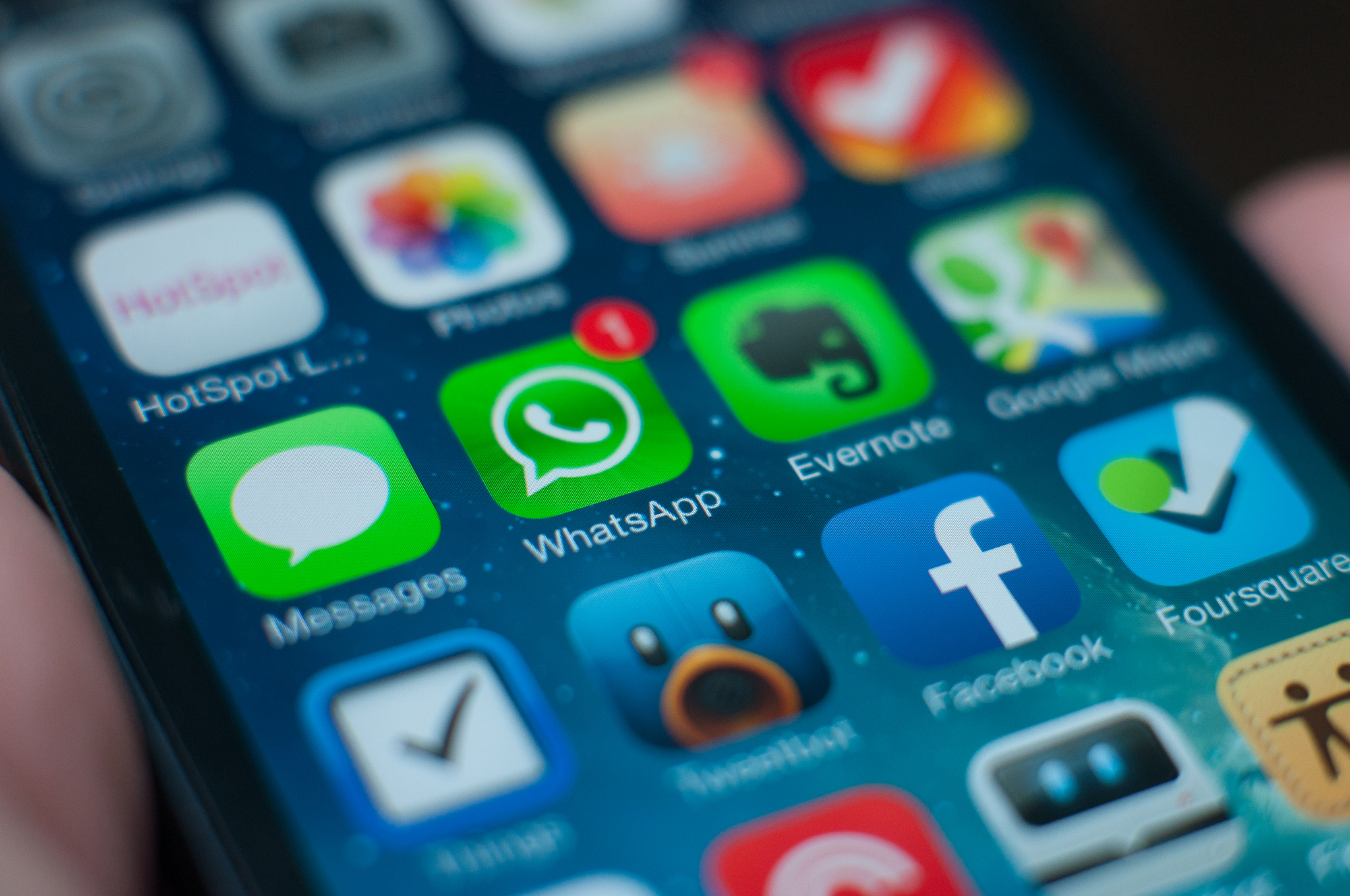







If your iPhone or iPad is running out of storage space, the most likely cause can be your bloated Messages app. Text messages, photos, videos, gifs, and audio notes combined can take up a few gigabytes of space in no time. And you may not even realize it, as your iPhone or iPad are set to store every message you send or receive forever – by default.
To make matters worse, the same amount of storage is wasted on your iCloud account when you back up your device – not a good thing if you are on a free iCloud plan with a 5G storage limit.
Luckily, since iOS 8, you can limit how long you want your messages stored on your iPhone or iPad. So, unless there is a mission-critical reason for you to hang on to old messages, deleting them automatically can free up tons of space on your iPhone or iPad – leaving more space for that cool app you just found.
First, take a look at just how much space you messages app is hogging and then configure the messages app to auto-delete old messages.
Changes are a few gigabytes of storage are being wasted on old messages. You can delete old messages manually from within the Messages app or, the easy option is to set up the app to automatically delete older messages so that you never have to worry about it again.
To have old messages automatically deleted from your iPhone or iPad, follow these steps:
If you go back to the previous section and check how much space old messages are taking up now, you should see a significant drop in wasted storage space.
Clearing out old messages from your iPhone and iPad is the simplest way to free up storage but there are four more tips and tricks for freeing up space on your iPhone.
Support our mission to keep content open and free by engaging with theCUBE community. Join theCUBE’s Alumni Trust Network, where technology leaders connect, share intelligence and create opportunities.
Founded by tech visionaries John Furrier and Dave Vellante, SiliconANGLE Media has built a dynamic ecosystem of industry-leading digital media brands that reach 15+ million elite tech professionals. Our new proprietary theCUBE AI Video Cloud is breaking ground in audience interaction, leveraging theCUBEai.com neural network to help technology companies make data-driven decisions and stay at the forefront of industry conversations.





