






At the start of the week, Apple announced that iOS 9.3 is available in both developer and public beta form. While Apple has not yet indicated when the latest version of the operating system will be available for the general public, one of the new features that you can expect is Night Shift.
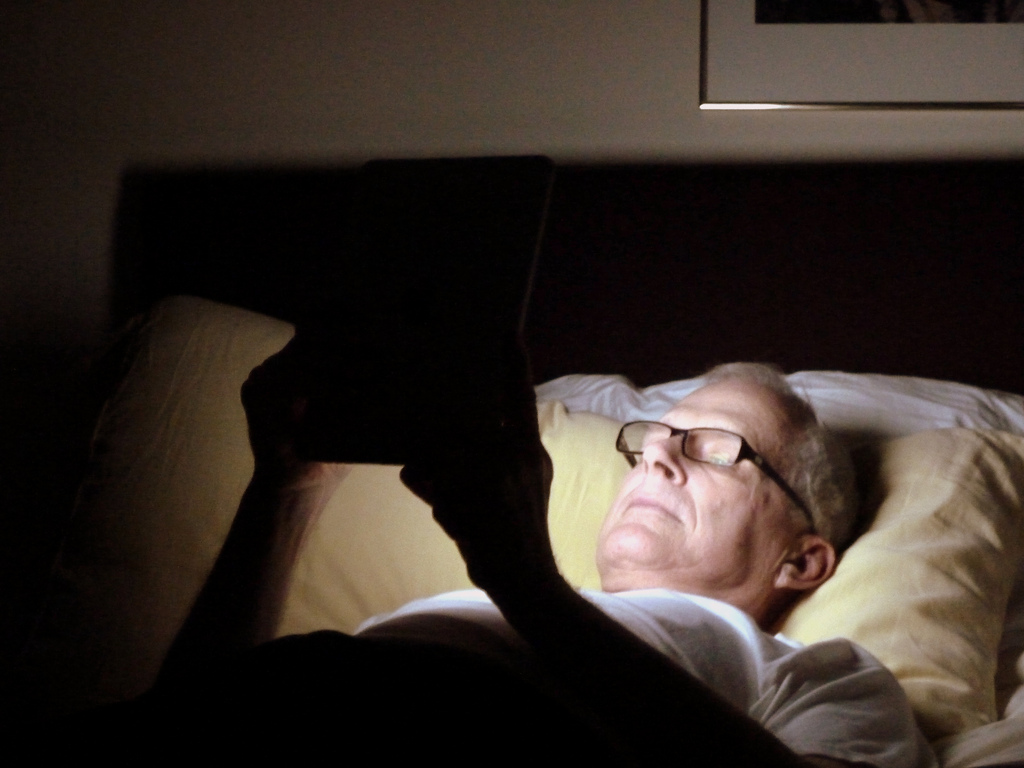
While a bright white screen with a blue-based lighting scheme is great during the day, it can cause particular strain on both your eyes and your circadian rhythm at night. You may not consciously pick up the effect that blue light has on your body while you are in bed surfing the web, but studies have shown that it can have a dramatic effect on your ability to fall asleep.
The new Night Shift feature in iOS 9.3 helps to reduce the strain on your eyes when viewing your iPhone or iPad’s screen after sunset. With Night Shift, the bright white that is perfect during the daytime will fade to a warm yellow for nighttime viewing.
You can turn on the Night Shift feature manually, automatically at sunset and sunrise, or you can create a custom schedule for your iPhone and iPad.
To turn on Night Shift manually, go to the Settings app > Display & Brightness > toggle the Blue Light Reduction to on. You can then adjust the screen temperature from “cooler” to “warmer,” with the default being set in the middle.
To have the Night Shift turn on automatically, go to the Settings app > Display & Brightness > tap on Schedule (do not touch the toggle for Blue Light Reduction) > tap on From Sunset to Sunrise. Based on your iPhone or iPad’s clock, your device will shift from its regular daytime display to Night Shift mode, over the course of a minute, when the sun sets in your area — with the reverse happening when the sun rises in the morning.
Alternatively, instead of selecting From Sunset to Sunrise, you can select Custom Schedule and choose specific times when you want the Night Shift mode to activate or deactivate.
While Night Shift mode will look turned off, as you do not need to toggle the Blue Light Reduction to on, using the Schedule mode will automatically activate the feature and activate the toggle at the relevant time.
Having the Night Shift feature automatically switch on when the sun sets and switch off again when the sun rises will require you to enable your Location Services. Go to the Settings app > Privacy > enable Location Services.
You will also need to ensure that you enable the Time Zone found under Location Services. Go to the Settings app > Privacy > Location Services > System Services > toggle Setting Time Zone to on.
Support our mission to keep content open and free by engaging with theCUBE community. Join theCUBE’s Alumni Trust Network, where technology leaders connect, share intelligence and create opportunities.
Founded by tech visionaries John Furrier and Dave Vellante, SiliconANGLE Media has built a dynamic ecosystem of industry-leading digital media brands that reach 15+ million elite tech professionals. Our new proprietary theCUBE AI Video Cloud is breaking ground in audience interaction, leveraging theCUBEai.com neural network to help technology companies make data-driven decisions and stay at the forefront of industry conversations.





