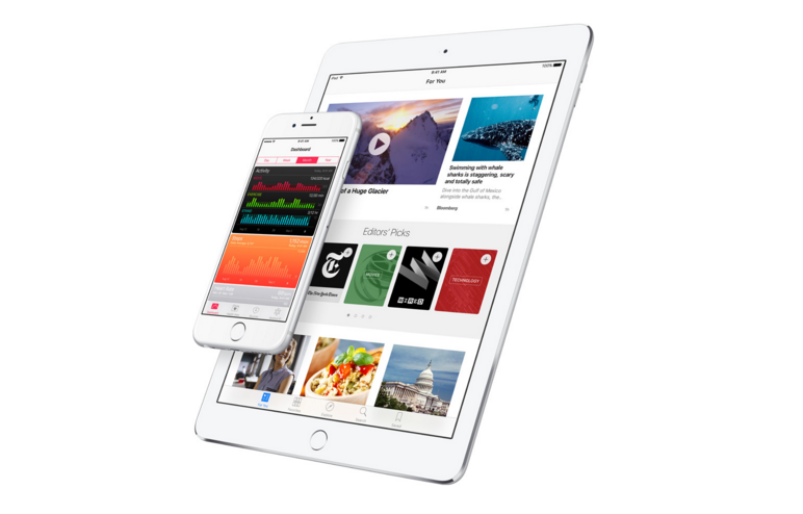







Apple on Monday made iOS 9.3 publicly available for download. It’s the first major dot release to iOS 9 since iOS 9.2.1 and brings several new features and well as an important security fix.
If you have not updated your iPhone, iPad, or iPod touch to iOS 9.3 yet, you may want to do so as soon as possible. Apart from new features, including Night Shift, password protection for Notes, new 3D Touch Quick Actions, and more, iOS 9.3 fixes a critical security flaw in iMessages.
The security flaw allows hackers to potentially break the encryption applied to photos and videos sent via the iMessage app on iPhones and iPads. In order for the fix to be effective, both the sender and recipient need to be using iOS 9.3, so encourage friends and family to update their devices as well.
Before you update to iOS 9.3, make sure you have a backup of your device and have enough space for the update to install. Follow the steps below:
By now you may have received a notification on your device that the iOS 9.3 update is available. If not, check your Settings app for a small red alert badge letting you know the update is there.
Step 1: Backup your data. Backup your photos, videos, music, settings, contacts and other important bits of data before installing the new OS. You can use iTunes or iCloud to backup your device.
This will create a local archived copy of the backup, from which you can restore your device should you need to.
Step 2: Connect to a charger and a strong, stable Wi-Fi network. Or, connect your device to your computer with the latest version of iTunes installed and launch iTunes.
Step 3: Update over the air (OTA) or via iTunes. To update OTA, tap Settings > General > Software Update > click Download and Install. To update via iTunes, select your device from the list (assuming you have more than one) > click Check for Updates under Summary.
Step 4: Free up space for iOS 9.3. If you do not have enough free space for the update, your device will prompt you to make space by offering to temporarily delete apps and automatically reinstall them after the update. Or, you can manually free up space on your iPhone, iPad, or iPod touch.
(Optional) Step 5: Schedule the update. If you cannot stand being unable to use your iPhone even for a short period of time, you have the option to schedule the update to install overnight. Simply download the update, schedule it and make sure your device is plugged in.
Not convinced you need iOS 9.3? Check out our full overview of all the new features in iOS 9.3.
Support our mission to keep content open and free by engaging with theCUBE community. Join theCUBE’s Alumni Trust Network, where technology leaders connect, share intelligence and create opportunities.
Founded by tech visionaries John Furrier and Dave Vellante, SiliconANGLE Media has built a dynamic ecosystem of industry-leading digital media brands that reach 15+ million elite tech professionals. Our new proprietary theCUBE AI Video Cloud is breaking ground in audience interaction, leveraging theCUBEai.com neural network to help technology companies make data-driven decisions and stay at the forefront of industry conversations.





