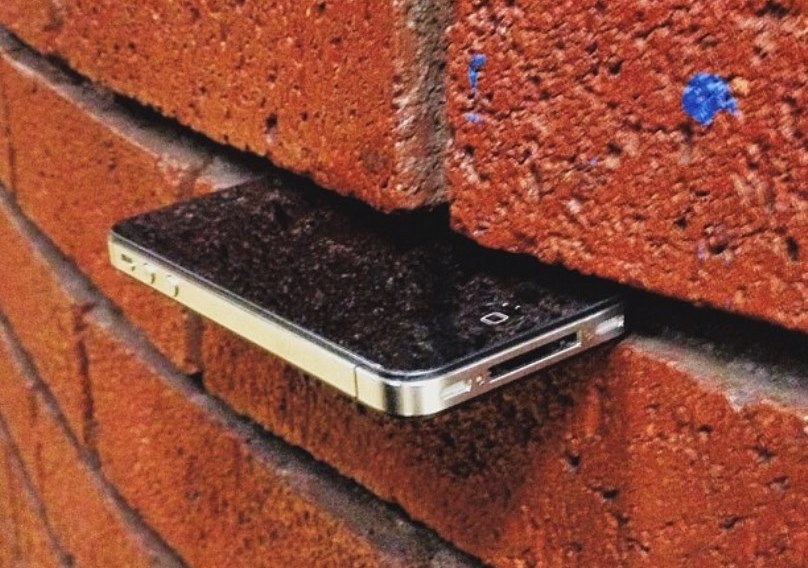







Mere days after Apple released the latest iteration of iOS, users reported that the iOS 9.3 update bricked their iPad 2, with devices failing to activate after the update was completed.
Initially attributed to Apple’s activation servers being overloaded, the problem persisted as long as 24+ hours after the update became available. It is now confirmed that the issue has nothing to do with too many people trying to update to iOS 9.3 at the same time but, rather, is caused by a requirement to enter the Apple ID and password used to originally set up the device in order to activate it after the update. It appears many users simply don’t remember their original Apple ID and password.
In a statement to iMore, Apple acknowledged the issue and said that it only affects older devices, including the iPhone 5s and older and the iPad Air and older. Apple has temporarily pulled the iOS 9.3 update for affected devices and has committed to release a new build of iOS 9.3 in the next few days that will remove the requirement to enter the original Apple ID and password:
Updating some iOS devices (iPhone 5s and earlier and iPad Air and earlier) to iOS 9.3 can require entering the Apple ID and password used to set up the device in order to complete the software update. In some cases, if customers do not recall their password, their device will remain in an inactivated state until they can recover or reset their password. For these older devices, we have temporarily pulled back the update and will release an updated version of iOS 9.3 in the next few days that does not require this step.
If your iPhone or iPad has been bricked by the iOS 9.3 update, Apple has published a support page with troubleshooting steps. This is what Apple says you can try to fix the issues:
If you cannot recall the Apple ID and password you used to set up the device and the hint on the Activate iPhone screen doesn’t match your current Apple ID, first try this:
If that doesn’t work, activate your device in iTunes:
If both the above attempts failed, sign in to iCloud and remove Activation Lock:
If none of these suggested fixes work, try restoring your iPhone from the backup you made before installing iOS 9.3 and wait for Apple to release the new build before attempting the update again.
Support our mission to keep content open and free by engaging with theCUBE community. Join theCUBE’s Alumni Trust Network, where technology leaders connect, share intelligence and create opportunities.
Founded by tech visionaries John Furrier and Dave Vellante, SiliconANGLE Media has built a dynamic ecosystem of industry-leading digital media brands that reach 15+ million elite tech professionals. Our new proprietary theCUBE AI Video Cloud is breaking ground in audience interaction, leveraging theCUBEai.com neural network to help technology companies make data-driven decisions and stay at the forefront of industry conversations.





