







Facebook Inc.-owned messaging platform WhatsApp already has over a billion people using their app. The company has now launched a desktop app version of their popular messaging app for Windows and Mac users. The news comes over 15 months since WhatsApp launched its web version of the app.
The desktop app works in a similar fashion to the web version and as WhatsApp noted in its official blog post “our desktop app is simply an extension of your phone: the app mirrors conversations and messages from your mobile device.”
If you use WhatsApp a lot and want to avoid having to pull out your phone every two minutes to check your latest message, follow these steps to download the WhatsApp desktop app for Windows or Mac. You can then WhatsApp while you work all on one screen.
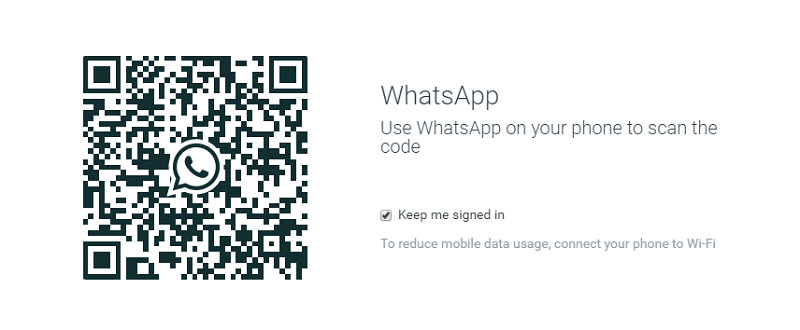
– For Android users: Open WhatsApp on your phone > Menu > WhatsApp Web.
– For iPhone users: Open WhatsApp on your iPhone > Settings > WhatsApp Web.
– For Windows Phone users: Open WhatsApp on your phone > Menu > WhatsApp Web.
– For Blackberry users: Open WhatsApp on your phone > Chats > Menu key > WhatsApp Web.
– For Blackberry 10 users: Open WhatsApp on your phone > swipe down from the top of your screen > WhatsApp Web.
– For Nokia S60 users: Open WhatsApp on your phone > Menu > Whatsapp Web.
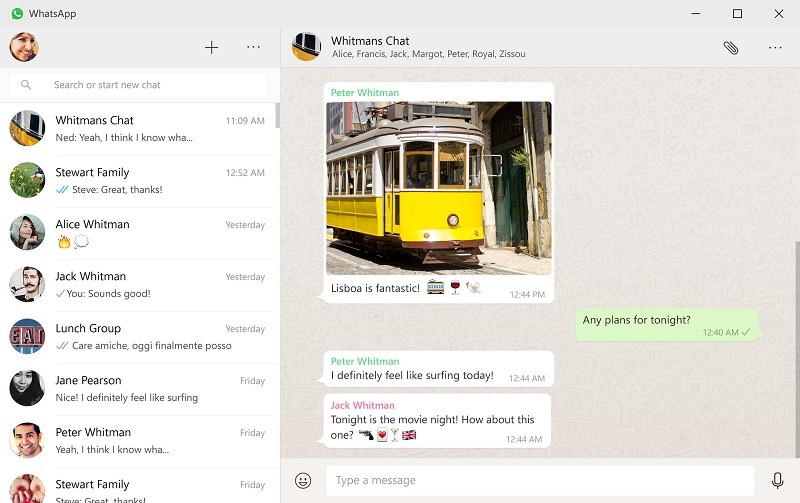
Remain secure: If you use a shared computer make sure you log out of WhatsApp on your desktop or else everyone using the computer will see your WhatsApp messages. You can log out in the app, under Menu > Log out.
If you are already away from the machine you can also log out via your smartphone. Follow the same process above for scanning the QR code. When you tap WhatsApp Web you will see a message that you are logged in and when you were last active > tap Log out from all computers > Log out.
If you would prefer to use the web version of WhatsApp over the desktop version, you can follow the setup instructions below.
Support our mission to keep content open and free by engaging with theCUBE community. Join theCUBE’s Alumni Trust Network, where technology leaders connect, share intelligence and create opportunities.
Founded by tech visionaries John Furrier and Dave Vellante, SiliconANGLE Media has built a dynamic ecosystem of industry-leading digital media brands that reach 15+ million elite tech professionals. Our new proprietary theCUBE AI Video Cloud is breaking ground in audience interaction, leveraging theCUBEai.com neural network to help technology companies make data-driven decisions and stay at the forefront of industry conversations.





