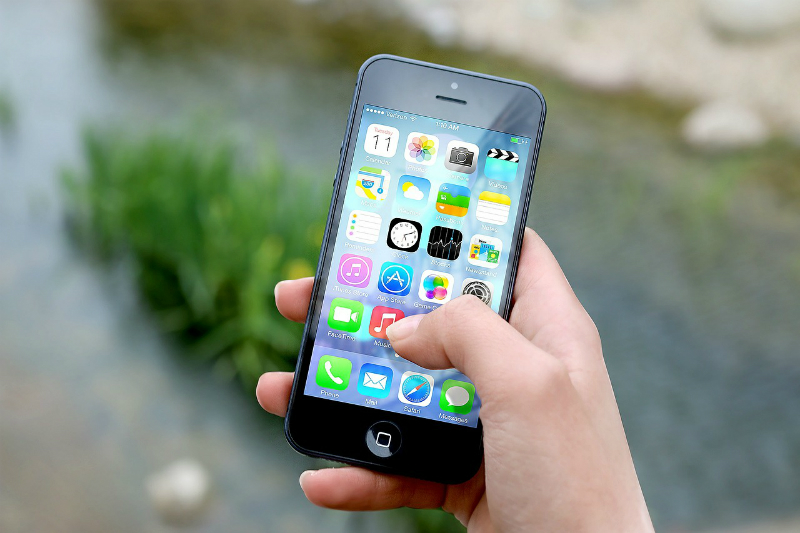







While it wasn’t officially announced during the presentation of iOS 10 features at Apple’s Worldwide Developers Conference on Monday, June 13, it is now possible for users to remove default apps from their Home screen.
When you ‘delete’ a built-in app from your Home screen, it doesn’t actually delete the actual app binary. What is removed is the app’s icon from the Home screen, user data, default links, Siri handling etc. However, all the built-in apps combined use less than 150 MB storage, so they will not be taking up much space on your device.
In order to remove default apps from your Home screen, you will obviously need to have the latest operating system installed on your device. If you do not want to wait until the fall for the official release of iOS 10, check out our article to see how you can enroll for the public beta available in July or how you can download iOS 10 beta 1 currently available for developers.
Removing certain built-in apps from your Home screen may have an effect on other system functionalities on your device.
Below is a list of default apps that you can remove from your iPhone or iPad’s Home screen as well as some of the effects the removal could have on other functionality.
|
Calculator If removed, the calculator will no longer appear in the Control Center. |
iCloud Drive | Reminders |
|
Calendar |
iTunes Store |
Stocks If removed, the app won’t be available elsewhere i.e. you won’t see stock info in the Notification Center or as Glances or Complications on your Apple Watch. |
|
Compass |
Tips |
|
|
Contacts (iPhone only) If removed all contact information will be found under the Phone app. |
Maps |
Videos |
|
FaceTime |
Music
If removed, the app won’t be available for use with CarPlay. |
Voice Memos |
|
Find My Friends |
News
Will only be possible to remove this app in a later version of iOS 10 beta. |
Watch app If paired with an Apple Watch, you need to unpair the device before you can remove the app. If removed, the app will also be removed from your paired Apple Watch Home screen. |
|
Home |
Notes |
Weather If removed, the app won’t be available elsewhere i.e. you won’t see weather info in the Notification Center or as Glances or Complications on your Apple Watch. |
| iBooks | Podcasts
If removed, Podcasts will not be available with CarPlay. |
Just as you would remove any other app downloaded from the App Store, removing a built-in app works in the same, simple way.
Touch and hold the app that you want to remove until it starts to jiggle > tap the ‘x’ on the app > tap Remove > to complete the process, press the Home button.
Go to the Apple App Store > search for the app that you want to add back to your Home screen > tap the Get button > once the app is restored you can open it on your iPhone or iPad’s Home screen.
Since the binary was never deleted when you removed the app, when you download the app you are merely switching the app icon back on.
Note: Any updates for these default apps will only be updated as part of a Software Update via the entire operating system. Apple won’t be able to update the apps through the App Store.
Support our mission to keep content open and free by engaging with theCUBE community. Join theCUBE’s Alumni Trust Network, where technology leaders connect, share intelligence and create opportunities.
Founded by tech visionaries John Furrier and Dave Vellante, SiliconANGLE Media has built a dynamic ecosystem of industry-leading digital media brands that reach 15+ million elite tech professionals. Our new proprietary theCUBE AI Video Cloud is breaking ground in audience interaction, leveraging theCUBEai.com neural network to help technology companies make data-driven decisions and stay at the forefront of industry conversations.





