







In May, Google released a major update for its Google Keyboard for Android users, an update that included one-handed mode, adjustable keyboard height, gesture typing and more.
The latest update for Google Keyboard now allows users to customize their keyboard’s background, with additional color options, as well as the ability to add their own custom image from their gallery. These features were previously only available to users running the Android N beta, but now all Android users with Google Keyboard installed on their device can enjoy the new features.
We look at the easy process of how you can customize the background of your Google Keyboard.
First off, if you have not installed the Google Keyboard app on your Android device then you can download it from the Play Store. Alternatively, make sure the Google Keyboard app on your device is up-to-date, for the new updates, like customizable themes you will need version 5.1.23 or later.
If you are new to Google Keyboard, you will go through a step-by-step process to set it up.
Open the Google Keyboard app and follow these steps:
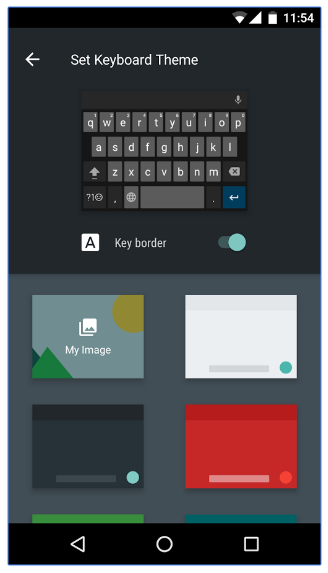 Customize your keyboard with a custom theme
With the latest update to the Android version of Google Keyboard, you are now able to choose from a variety of new color options besides the original ‘material dark’ and ‘material light’ options.
Open the app > tap Set Keyboard Theme > select a color option from the options, including red, blue, green, pink, black or gray options.
Open the app > tap Set Keyboard Theme > My Image > select an image from your gallery or an alternative source, like Google Photos.
Adjust orientation and position: Pinch the image to adjust the orientation and drag it to adjust the position until you are happy with what will be displayed on your keyboard’s background > tap Next.
Adjust the brightness: In order to see the white keys of the Google Keyboard, you will need to adjust the brightness of your image to ensure you can still see what keys to press > tap Done.
Make sure you check out our article for other Google Keyboard tips for Android users.
Support our mission to keep content open and free by engaging with theCUBE community. Join theCUBE’s Alumni Trust Network, where technology leaders connect, share intelligence and create opportunities.
Founded by tech visionaries John Furrier and Dave Vellante, SiliconANGLE Media has built a dynamic ecosystem of industry-leading digital media brands that reach 15+ million elite tech professionals. Our new proprietary theCUBE AI Video Cloud is breaking ground in audience interaction, leveraging theCUBEai.com neural network to help technology companies make data-driven decisions and stay at the forefront of industry conversations.





