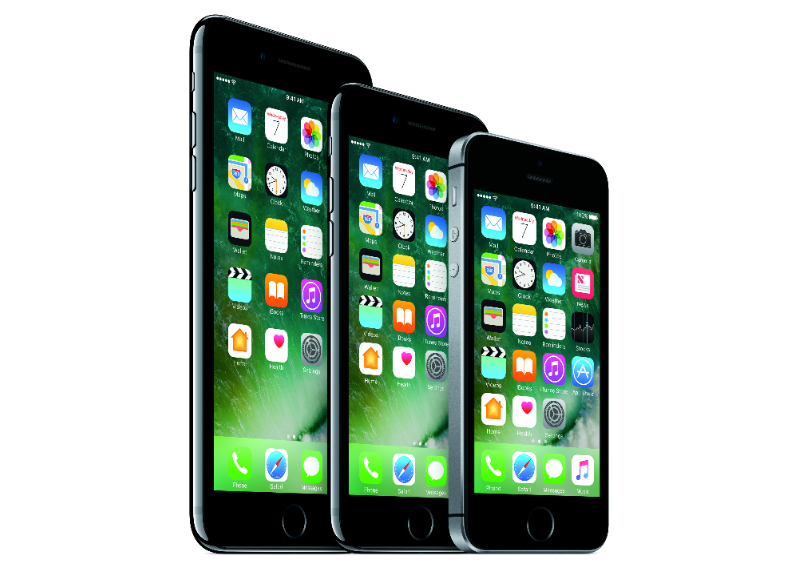







It’s nearly a month since Apple Inc. released iOS 10 to the public and in that time it has seen the fastest adoption rate compared to its previous operating systems. Both Fiksu and Mixpanel have recorded the iOS 10 adoption rate at 66.7 percent and 66 percent respectively.
If you haven’t made the decision yet to download the latest operating system make sure you check out the iOS 10 features that you are missing out on. For the majority of iOS users who have installed iOS 10, we look at some of the lesser-known features that you may not have come across yet.
In iOS 10 the number of tabs you can have open in Safari has been increased from 36 to unlimited. Keeping track of all your open tabs can be difficult especially on an iPhone or iPad, but iOS 10 also includes the ability to search your open Safari tabs.
To search your Safari tabs, tap the button to view all your open tabs in the lower-right corner > rotate your iPhone or iPad into landscape. In the search box in the upper-left corner, enter your search terms > Safari will filter out the relevant tab.
During the search, Safari is only able to search the title of the tab and not the content, so to be successful with your search you will need to remember at least one of the words in the title.
On an iPhone: Open Tab View > long press on Done > tap Close [x] tabs.
On an iPad: Long press on the Tab View button > tap Close [x] tabs.
In Settings > General > Accessibility > toggle the Magnifier switch to On.
To use the Magnifier setting, tap the Home button three times. The flash is turned on automatically to provide you with extra light while you can use the on-screen slider to zoom in or out on the text or object. A padlock icon on the screen fixes the focus of the text or object. To take a freeze frame, tap the shutter button.
Save data with lower quality images
To save data, iOS 10 now allows you to send lower quality images. Go to Settings > Messages > enable Low Quality Image Mode at the bottom of the list.
iOS 10 introduced a new feature in the Clock app called Bedtime Clock that allows you to get the right amount of sleep. In addition to this new feature, Apple also introduced a small change to the stopwatch in the form of a new face.
Open the Clock app > tap Stopwatch > swipe left and you will see the new stopwatch face.
If using an iPhone 6s or newer, you can clear all notifications in one go by doing a hard press on the “x” at the top of your notifications list. Tap Clear All Notifications when it pops up.
iOS 10 allows you to manage your downloaded music on your device and ensure it doesn’t take up too much precious space on your iOS device.
On your iPhone or iPad, go to Settings > Music > Downloads. Under the Downloaded Music section, you can manage the songs or albums stored on your device.
You can also set a specific amount of storage you want to keep for your music downloads. When the storage starts to get low, iOS will automatically remove songs that you rarely listen to.
Read our article for additional hidden features in iOS 10 that you may not have found yet.
Sources: Cult of Mac; Gizmodo
Support our mission to keep content open and free by engaging with theCUBE community. Join theCUBE’s Alumni Trust Network, where technology leaders connect, share intelligence and create opportunities.
Founded by tech visionaries John Furrier and Dave Vellante, SiliconANGLE Media has built a dynamic ecosystem of industry-leading digital media brands that reach 15+ million elite tech professionals. Our new proprietary theCUBE AI Video Cloud is breaking ground in audience interaction, leveraging theCUBEai.com neural network to help technology companies make data-driven decisions and stay at the forefront of industry conversations.





