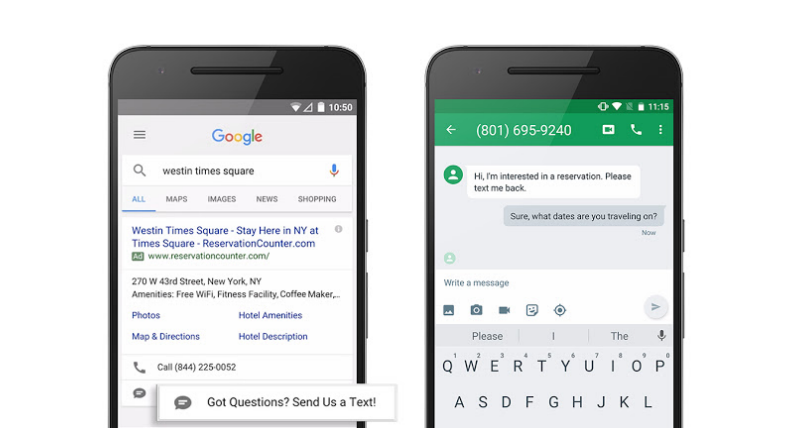







For several months, Google has been testing click-to-message ads, a convenient way for users to contact companies via search ads using a pre-populated SMS. Advertisers, such as Auto & General, AnyVan, TravelPASS Group and Global Industrial have been testing message extensions for its ads and now Google is rolling out the feature to a broader audience “in the coming weeks.”
As chatbots become increasingly more popular with the likes of Facebook Messenger supporting various chatbots, including the ability to order a Domino’s pizza, as well as companies like IBM and Cisco Systems Inc. jumping on the chatbot bandwagon recently, Google is focusing on SMS with its latest feature for businesses.
Chatbots may be “the in thing”, but SMS remains a popular choice for smartphone users. According to a report from Pew Research Center, 97 percent of U.S. smartphone owners texted at least once a day in 2015.
Here’s a look at Google’s new click-to-message ads and how to get started with the message extensions.
Setting up message extensions for your ads will allow users to easily contact your company via SMS to get additional details about a deal or product, make a hotel or restaurant reservation, get a quote, etc., by simply tapping an icon.
When a user taps on the texting option their default SMS app will automatically launch together with a pre-populated text that has been created by the business. The user can then start a conversation with your business.
Note: If someone taps the message icon, the company will be charged for a click, in the same way that a company is charged when a user clicks an ad and is directed to the company website.
As a business owner, you can create a message extension at either the campaign or ad group level.
Sign into your AdWords account > click either the Campaigns or Ad group tab > Ad extension > click the View menu > select “Message extensions.”
Select either the Campaigns or Ad group tab > to add a message extension, select the relevant campaign or ad group > click Done.
Click “+ New Message” at the bottom of the table > include your business name, phone number, extension text and message text. The extension text will appear in your click-to-message ad while the message text will pre-populate as an SMS if a person opts to message your company.
If you want the message extension to be restricted to certain dates or times you can click the “Advanced” button to make the necessary changes > click Save.
To edit a message extension, go to “Message extensions” under the View menu > hover over an existing message extension > select the pencil icon to make edits.
Source: Google support
Support our mission to keep content open and free by engaging with theCUBE community. Join theCUBE’s Alumni Trust Network, where technology leaders connect, share intelligence and create opportunities.
Founded by tech visionaries John Furrier and Dave Vellante, SiliconANGLE Media has built a dynamic ecosystem of industry-leading digital media brands that reach 15+ million elite tech professionals. Our new proprietary theCUBE AI Video Cloud is breaking ground in audience interaction, leveraging theCUBEai.com neural network to help technology companies make data-driven decisions and stay at the forefront of industry conversations.





