Google Inc. has made it easier to switch from iOS to Android with a new tool that allows iPhone and iPad users to back up their data to Google Drive before making the move over to Android.
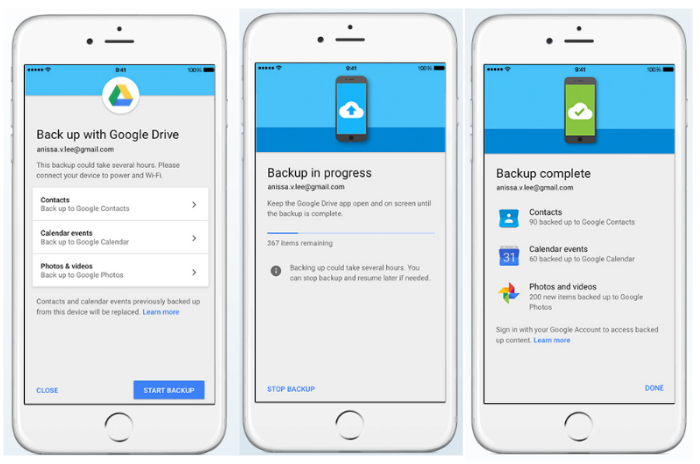
The Android Switch page describes how you can use Google Drive to backup your photos, videos, contacts and calendar entries from your iOS device. Here’s how:
How to move from iOS to Android
Before you start the backup to Google Drive you must be connected to a Wi-Fi network and power adapter.
If you do multiple backups, only new photos and videos will be backed up. While an additional backup will overwrite the previous backups of your contacts and calendar.
Items that won’t backup include photo albums, contacts and calendars from Facebook or Exchange.
Step 1: Download Google Drive
- Download and install the iOS Google Drive app from the App Store. If you already have Google Drive installed on your iPhone or iPad, make sure you update to the latest version.
- Open the Google Drive app and sign in with your Google account. If you don’t have a Google account, you can sign up for one here or when you sign into Google Drive.
Step 2: Backup your iOS content using the backup wizard
- Open the Google Drive app on your iPhone or iPad.
- Go to Menu > Settings > Backup.
- Either select the content that you want to backup (contacts, calendar events, photos and videos) or tap the “Start Backup” button in the bottom right corner to backup all your content.
Note: Connect to a Wi-Fi network and power as the backup can take several hours depending on the amount of photos and videos you have stored on your iPhone or iPad.
Step 3: Sign in on your Android device
- On your Android device sign into the same Google account that you used during the backup of your iOS device.
Tip: Make sure you turn off iMessage on your iPhone: Go to Settings > Messages > toggle iMessage to Off. In Settings > FaceTime > toggle FaceTime to Off.
All your content from your iOS device will now be available on your Android device.
- Photos and videos will be in the Google Photos app. Photos will back up in their original quality, but if storage space runs out the remaining photos are backed up in high quality.
- Calendar events from your iOS device, located in the Google Calendar app, are added to a new calendar named after your device.
- You will be able to see your contacts on your Android device after you turn on Google Contact sync on your iOS device. Open the Settings app > Contacts > Accounts > Add Account > Google > enter your login details > tap Next > switch “Contacts” on > tap Save. To start the sync process, open the Contacts app.
Tip: Before you tap “Save” a pop-up may request whether you want to keep or delete the contacts on your device before you start the sync process.
Source: Google support
Image via Google
A message from John Furrier, co-founder of SiliconANGLE:
Support our mission to keep content open and free by engaging with theCUBE community. Join theCUBE’s Alumni Trust Network, where technology leaders connect, share intelligence and create opportunities.
- 15M+ viewers of theCUBE videos, powering conversations across AI, cloud, cybersecurity and more
- 11.4k+ theCUBE alumni — Connect with more than 11,400 tech and business leaders shaping the future through a unique trusted-based network.
Are you AWS customer? Support SiliconANGLE Financially by buying your AWS services from our Marketplace portal page and links.
About SiliconANGLE Media
SiliconANGLE Media is a recognized leader in digital media innovation, uniting breakthrough technology, strategic insights and real-time audience engagement. As the parent company of
SiliconANGLE,
theCUBE Network,
theCUBE Research,
CUBE365,
theCUBE AI and theCUBE SuperStudios — with flagship locations in Silicon Valley and the New York Stock Exchange — SiliconANGLE Media operates at the intersection of media, technology and AI.
Founded by tech visionaries John Furrier and Dave Vellante, SiliconANGLE Media has built a dynamic ecosystem of industry-leading digital media brands that reach 15+ million elite tech professionals. Our new proprietary theCUBE AI Video Cloud is breaking ground in audience interaction, leveraging theCUBEai.com neural network to help technology companies make data-driven decisions and stay at the forefront of industry conversations.
 APPS
APPS












