 APPS
APPS
APPS
APPS






APPS

Microsoft Corp. has announced various updates for Office 365 users, with a large portion of the updates focused on OneDrive for Business clients.
The OneDrive update brings new collaboration and management features to enterprise users and includes shared folder sync, a standalone Mac client, a new admin center and more.
Microsoft’s updates for OneDrive for Business follows the news this week from Box Inc. who updated its Notes tool, which now includes a simpler web interface and desktop applications for personal computers and Macs. More news from the cloud storage market will likely follow next week from Dropbox Inc. who have a scheduled press event.
Here’s a look at the latest updates for OneDrive for Business clients:
Microsoft is introducing the ability to sync SharePoint Online team sites directly to OneDrive. Users will also be able to sync a OneDrive for Business shared folder.
Administrators can follow the instructions on the Microsoft site to enable users to sync SharePoint Online team sites with the new OneDrive sync client.
When you want to sync files you can choose to sync the entire library or specific files and folders.
To sync the entire library, go to the SharePoint site > Documents > click “Sync” to sync the entire library.
To sync specific files and folders, go to SharePoint on the Office 365 app launcher > select the site you want to sync > navigate to the subfolder that you want to sync > Sync > Sync now.
Note: Select “Yes” if the browser requests permission to use Microsoft OneDrive.
Select the relevant folders or files that you want to sync > click “Start sync.”
Microsoft is introducing a standalone Mac client, which can be deployed outside of the Mac App Store. The features that administrators will enjoy with the standalone Mac client Include enabling sync status, visual overlays in Finder, a Finder shortcut for OneDrive and setting up OneDrive sync to run at sign in.
The standalone Mac client can be downloaded from the Microsoft site.
Microsoft has launched a new onboarding process for users who are new to OneDrive and simplified the account setup process for users who don’t have an Office 365 or Microsoft account.
The sharing options in OneDrive have also been simplified. It now highlights when documents are being shared with external people and allows users to set an expiration duration on anonymous guest links.
Microsoft has added the activity center to the latest OneDrive sync client for Windows and Mac. Click the OneDrive icon in your system tray (PC) or Finder (Mac) and you will be able to see the most recent sync activity and status.
If you are using the latest OneDrive sync client, it will automatically be updated with the latest features.
The new admin center for OneDrive will provide administrators with various controls when it comes to users accessing specific OneDrive files.
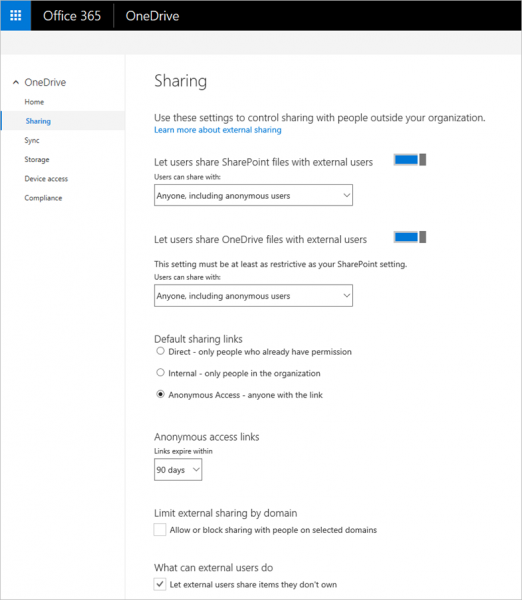
Sections of the OneDrive admin center include:
Source: Microsoft
Support our mission to keep content open and free by engaging with theCUBE community. Join theCUBE’s Alumni Trust Network, where technology leaders connect, share intelligence and create opportunities.
Founded by tech visionaries John Furrier and Dave Vellante, SiliconANGLE Media has built a dynamic ecosystem of industry-leading digital media brands that reach 15+ million elite tech professionals. Our new proprietary theCUBE AI Video Cloud is breaking ground in audience interaction, leveraging theCUBEai.com neural network to help technology companies make data-driven decisions and stay at the forefront of industry conversations.





