 APPS
APPS
APPS
APPS






APPS

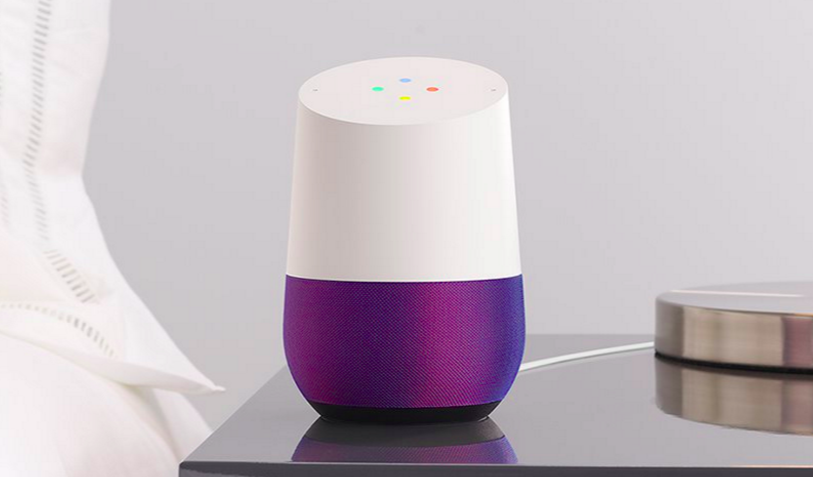
To bridge the gap between its Google Home device and the popular Amazon Echo, Google Inc. has added the ability to use Google Assistant for voice shopping on the connected smart speaker.
Users will be able to order items, including food, medicine, pet supplies and more from Google’s Express shopping service. Here’s how it works:
The payment method that you add will affect Google Assistant in Google Home and the Pixel smartphone, but won’t have an effect on other products, like Google Play, Google Express or YouTube.
Open the Google Home app > tap the Menu icon (top left corner) > confirm the correct Google Account is listed > tap More settings > under Google Account settings, tap Payments > accept the terms of service.
If you have already added a payment method, for example on Google Play, then you can select that one > tap Next. Alternatively, you can add a new payment method > tap “Add credit or debit card” > enter the card information, billing name, billing street address and phone number > tap Save > tap Next.
You can use the delivery address that you have previously added, simply select it > tap Next. If you haven’t previously added a delivery address, tap “Add new address” > enter your name, delivery address and phone number > tap Save.
 Step 3: Select which Google Home can make payments
On the next screen, you will see a list of Google Homes that you have set up for your house. In order for Google Home to make payments and use your information you need to enable “Personal results.”
Note: The controls for “Personal results” allows Google Home to use your personal information not only for payments, but also for other features like email, calendar and flights.
To enable Google Home to use your personal information, slide the slider next to the relevant device to the right > tap Done.
It is possible to disable payments for Google Assistant on all devices, but still make use of Google Assistant’s help with information about your flights, shopping lists, emails, etc. In the Google Home app > tap the Menu icon > confirm the correct Google Account is listed > tap More settings > under Google Account settings, tap Payments > slide the slider next to “Pay through your Assistant” to the left. You now won’t be able to use Google Assistant to make payments on any device, including your Pixel smartphone.
You will be able to purchase items from participating Google Express retailers, including Costco, Whole Foods Market, Walgreens, PetSmart, Bed Bath & Beyond and others.
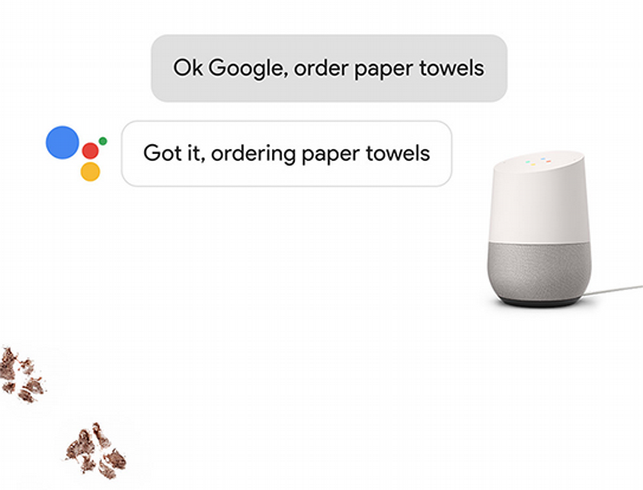
To start shopping simply say, “Ok Google, how do I shop?” or “Ok Google, order paper towels” or “Ok Google, buy a Google Home,” etc.
Normally Google Express has a minimum order amount and charges a delivery fee for users without a $95 annual Express membership. However, in its blog post, Google said that users shopping through Google Home won’t have additional service or membership fees through April 30.
Source: Google
Support our mission to keep content open and free by engaging with theCUBE community. Join theCUBE’s Alumni Trust Network, where technology leaders connect, share intelligence and create opportunities.
Founded by tech visionaries John Furrier and Dave Vellante, SiliconANGLE Media has built a dynamic ecosystem of industry-leading digital media brands that reach 15+ million elite tech professionals. Our new proprietary theCUBE AI Video Cloud is breaking ground in audience interaction, leveraging theCUBEai.com neural network to help technology companies make data-driven decisions and stay at the forefront of industry conversations.





