 APPS
APPS
APPS
APPS






APPS

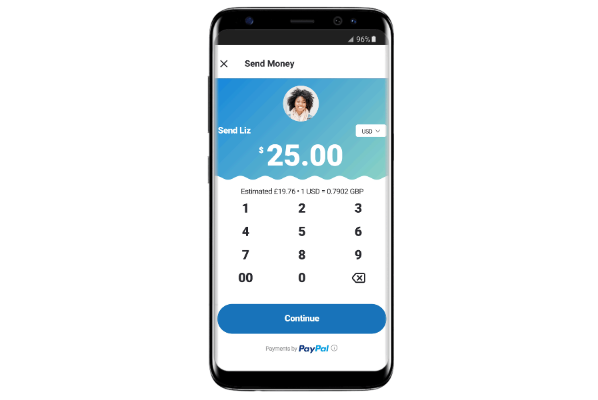
Skype has introduced a new Send Money feature that will allow users to transfer money to other users on the platform via PayPal.
Earlier this year, PayPal Holdings Inc. launched its first Slack bot that allows peer-to-peer payments in the messaging service and has also recently announced an integration with Samsung Pay. The payments giant continues to grow faster than analysts expected and will now be able to reach a portion of the more than 300 million monthly active users of Skype.
The new Send Money feature is only accessible in the latest version of the Skype mobile app and is currently only supported in 22 countries.
This integration follows Skype major redesign, which parent company Microsoft Corp. announced a couple of months ago. In addition to a new colorful interface, the new version of Skype includes Snapchat-like features that make the video chat program into more of a social network.
Here’s a look at how to send and receive money using Skype’s new Send Money feature, in conjunction with PayPal:
To send money with the new Send Money feature you will need to download the latest version of the Skype mobile app (Android or iOS), but the person receiving the money can be using any version of Skype.
Both the sender and receiver of the money need to be located in one of the 22 supported countries: U.S., U.K., Austria, Belgium, Cyprus, Estonia, Finland, France, Germany, Greece, Ireland, Italy, Latvia, Luxembourg, Malta, the Netherlands, Portugal, San Marino, Slovakia, Slovenia and Spain.
Supported currencies include U.S. Dollars, Canadian Dollars, British Pounds and Euros, but the company plans to add more currencies soon.
Once you have downloaded the updated app onto your iPhone or Android device, you are ready to send money to friends or family.
In the relevant Skype chat > swipe to the right or tap Find > in the add-ins, select Send Money > select your country location as well as the location of your friend > tap Next. Enter the amount of money > tap Next. You will be prompted to sign into your PayPal account and you will need to link your account to your Microsoft account (if you don’t have a PayPal account, you can create one at this stage) > tap Send to complete the transfer.
Tap “Back to chat” and you will see a Money Transfer card in the chat window.
Note: While there is no setup fee for the Send Money feature there may be transaction fees charged by PayPal.
If you are using the mobile app you will see the Money Transfer card mentioned above in the chat window when you receive money. If you are using a different version of Skype, you will receive a message together with a link to the Skype website.
To claim your money from the Money Transfer card or the website link, select the Collect option > Continue > link your PayPal account to your Microsoft account or create a new account if you don’t use PayPal > the money will be transferred to your PayPal account.
Tap your profile picture in the Chats screen > tap Settings > Send Money settings > you will see a list of transactions, together with the status of the payment. Tap a transaction to see more details.
Support our mission to keep content open and free by engaging with theCUBE community. Join theCUBE’s Alumni Trust Network, where technology leaders connect, share intelligence and create opportunities.
Founded by tech visionaries John Furrier and Dave Vellante, SiliconANGLE Media has built a dynamic ecosystem of industry-leading digital media brands that reach 15+ million elite tech professionals. Our new proprietary theCUBE AI Video Cloud is breaking ground in audience interaction, leveraging theCUBEai.com neural network to help technology companies make data-driven decisions and stay at the forefront of industry conversations.





